How-to guides

Setting up a website chatbot - choosing pages, adding documents, installing it, fixing gaps.

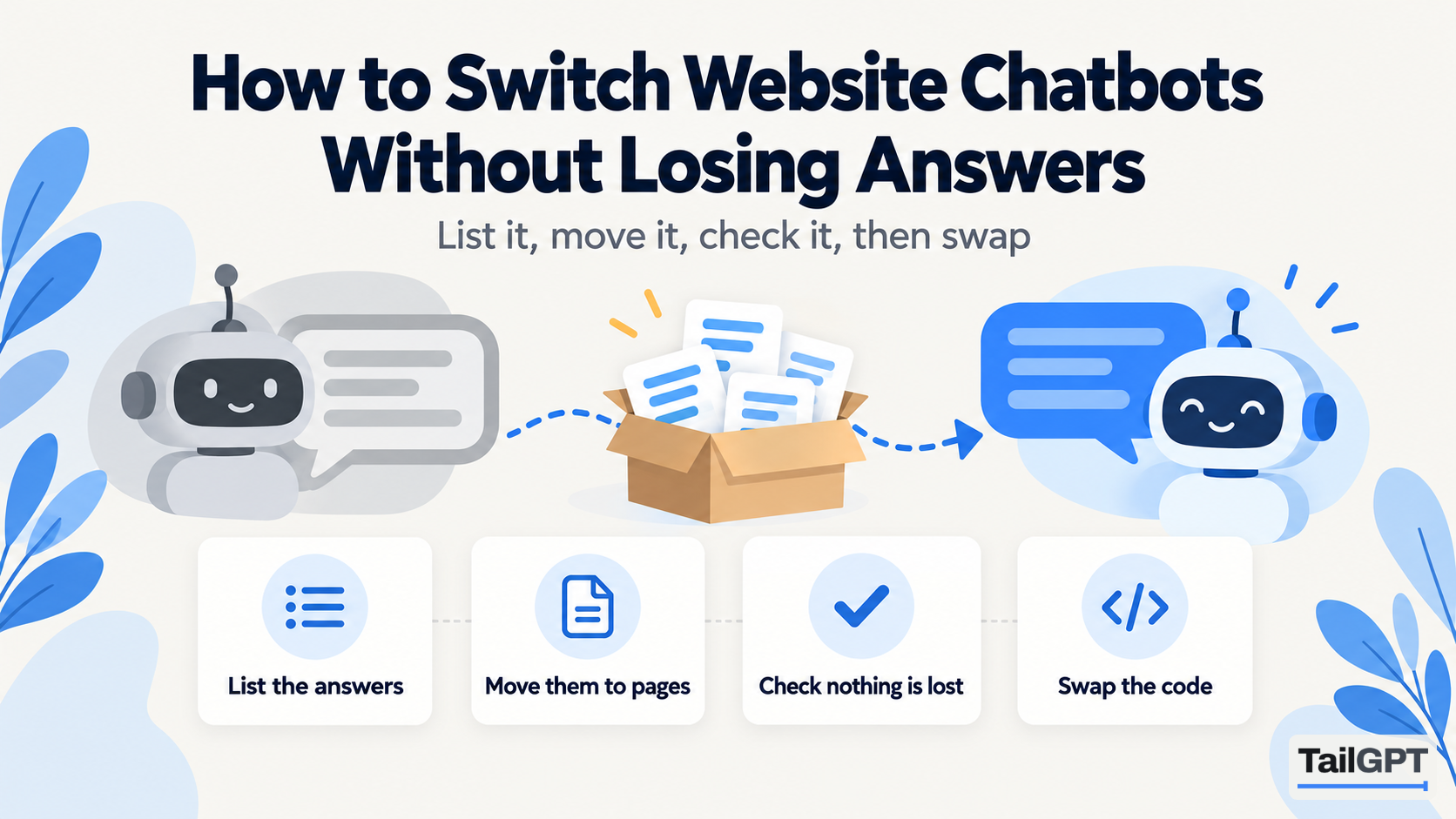
  1. How to switch website chatbots without losing answers: an old bot's answers boxed and carried to a new one; list the answers, move them to pages, check nothing is lost, swap the code

    How-to guides

    How to switch website chatbots without losing answers

    To switch website chatbots without losing answers, list everything your current bot knows, move typed answers onto pages or into a document, set up TailGPT on its free trial, ask both bots the same questions, then swap the line of code and remove the old one. Save old conversations before cancelling.

    Siddharth Kajaria · 7 October 2026 · 9 min read

    Read
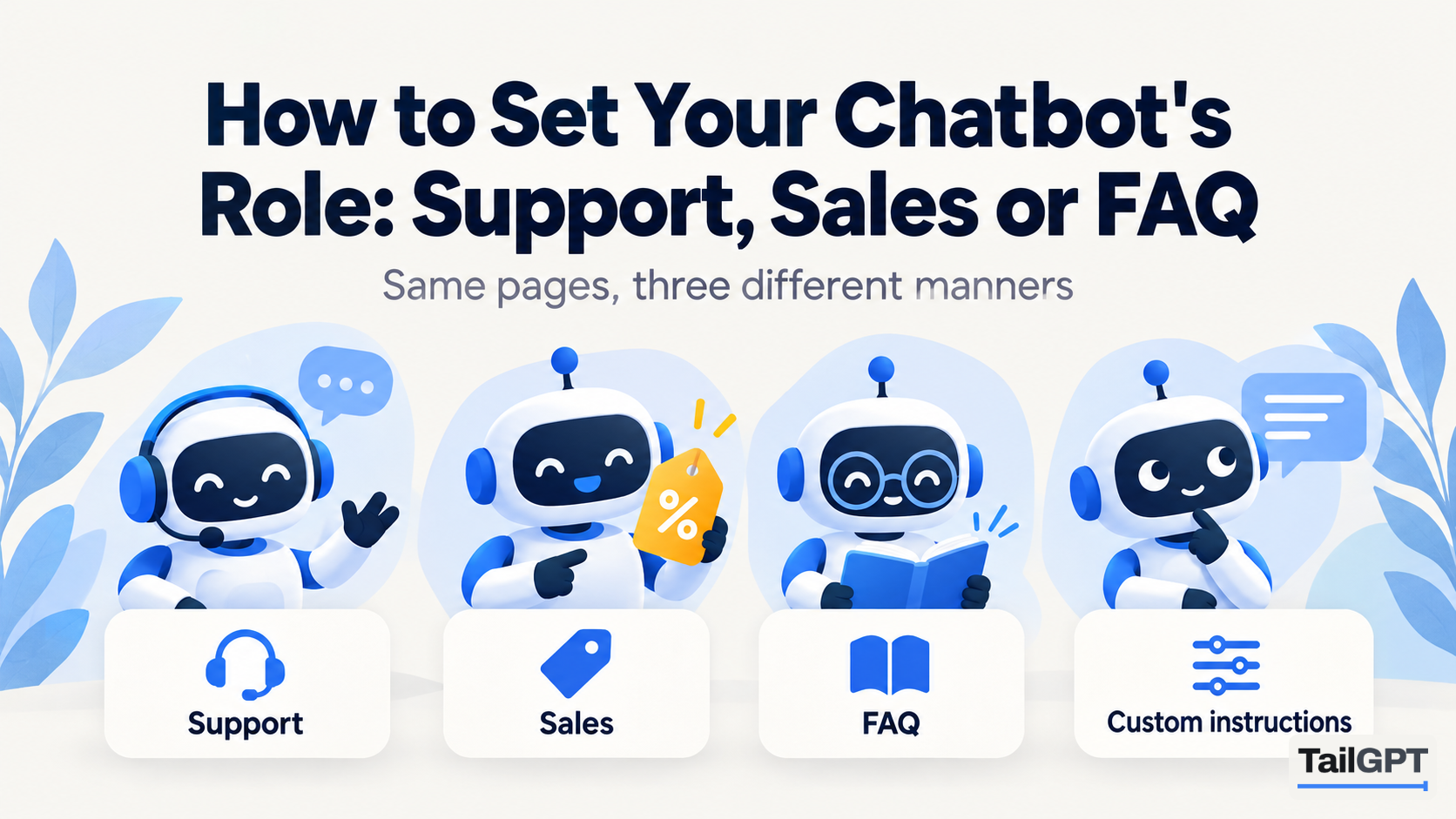

  2. How to set a chatbot's role: four robots on the same pages in different manners - support with a headset, sales with a price tag, FAQ with a book, custom instructions

    How-to guides

    How to Set Your Chatbot's Role: Support, Sales or FAQ

    A TailGPT chatbot's role sets its manner: Support is calm and factual, Sales leads with what you offer and points to a next step, FAQ gives short direct answers, and Custom follows your own instructions. No role changes what it may say: every one answers only from your pages.

    Siddharth Kajaria · 7 October 2026 · 9 min read

    Read
  3. How to run separate sales and support chatbots: two bots on one website, a sales bot and a support bot, each with a line of code, drawing on one shared question pool

    How-to guides

    How to Run Separate Sales and Support Chatbots

    To run separate Sales and Support chatbots in TailGPT, create two chatbots on the same website, give one the Sales role and the other Support, and paste each one's line of code on its own pages. Both answer from one reading of your site and share the account's question pool. Two chatbots need Growth or above.

    Siddharth Kajaria · 7 October 2026 · 10 min read

    Read
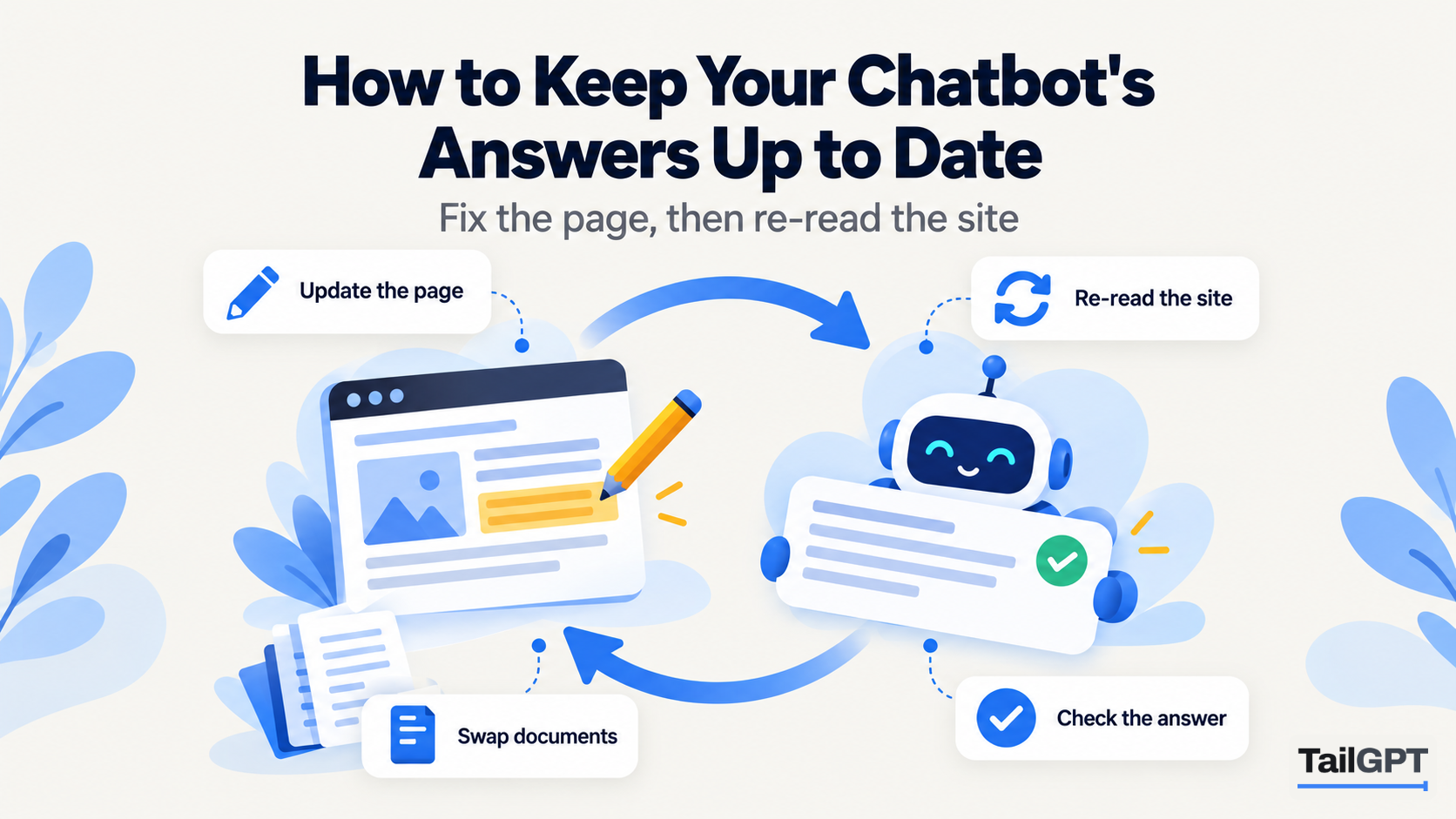
  4. How to keep chatbot answers up to date: a page being edited, the site re-read and the bot's answer checked, in a loop; update the page, swap documents, check the answer

    How-to guides

    How to Keep Your Chatbot's Answers Up to Date

    To keep a TailGPT chatbot's answers current, update your website, then have TailGPT read the site again from your monthly re-read allowance; there is no automatic refresh. For documents, upload the corrected file with the same name and it replaces the old one within seconds. Check Show chats monthly for stale answers.

    Siddharth Kajaria · 7 October 2026 · 11 min read

    Read
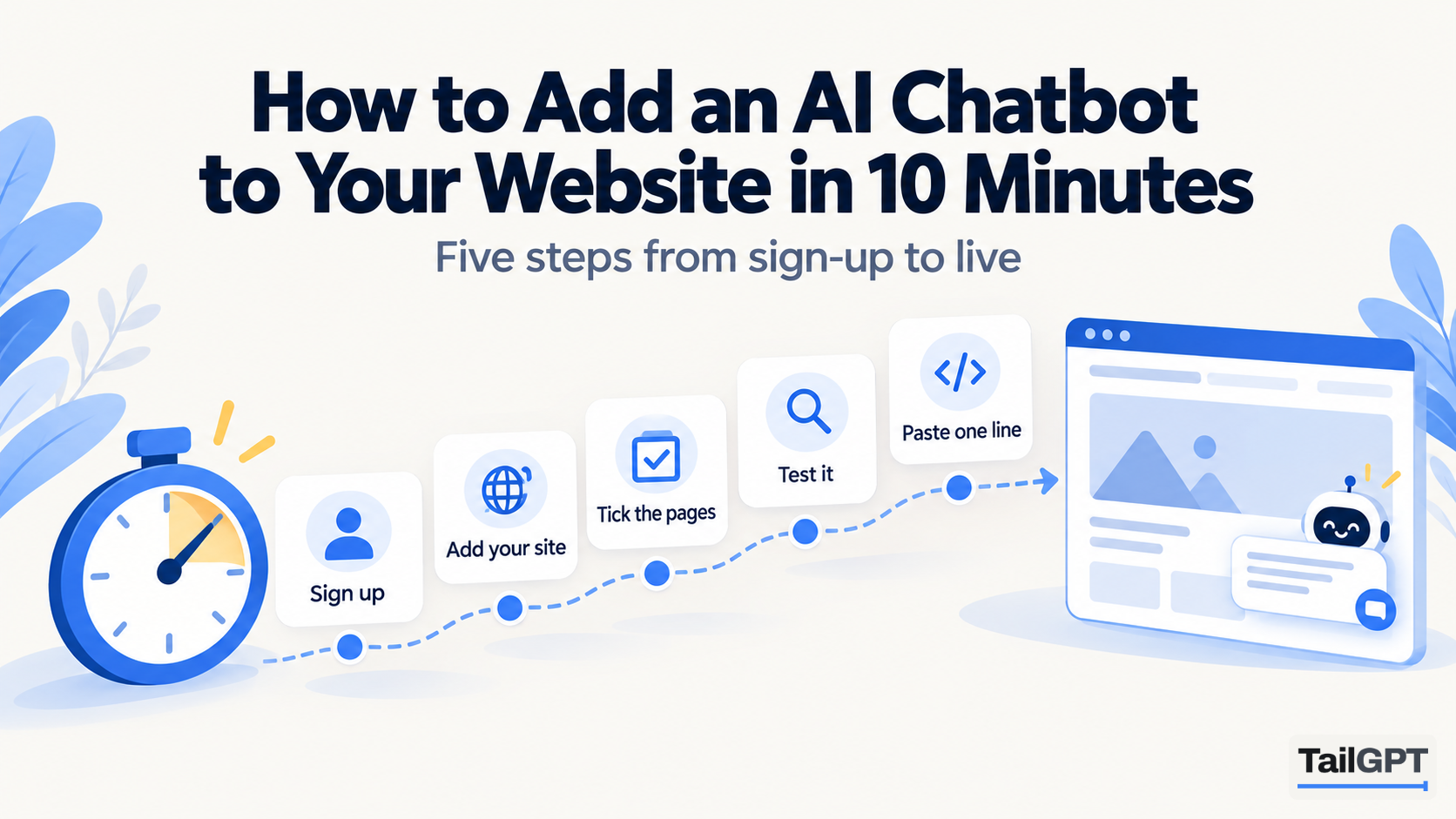
  5. How to add an AI chatbot to a website in 10 minutes: a stopwatch and five steps - sign up, add the site, tick the pages, test it, paste one line - ending at a live chat

    How-to guides

    How to Add an AI Chatbot to Your Website in 10 Minutes

    To add an AI chatbot to your website with TailGPT, sign up, add your site, tick the pages it should read, create and test a chatbot, choose a plan, then paste one line of code before </body>. Your part takes about ten minutes; reading the pages runs in the background.

    Siddharth Kajaria · 7 October 2026 · 13 min read

    Read
  6. Should a chatbot read the docs or the whole site: a robot where docs and web pages overlap, labelled docs only, curated mix, whole site, behind a login

    How-to guides

    Should a chatbot read your docs or your whole site?

    Point a chatbot at your docs alone when visitors are existing customers asking how to use what they bought; point it at your whole site when they are still deciding. Most small businesses need a curated mix. TailGPT lets you tick exactly which pages it reads and upload PDF, Word and text documents beside them.

    Siddharth Kajaria · 7 October 2026 · 9 min read

    Read
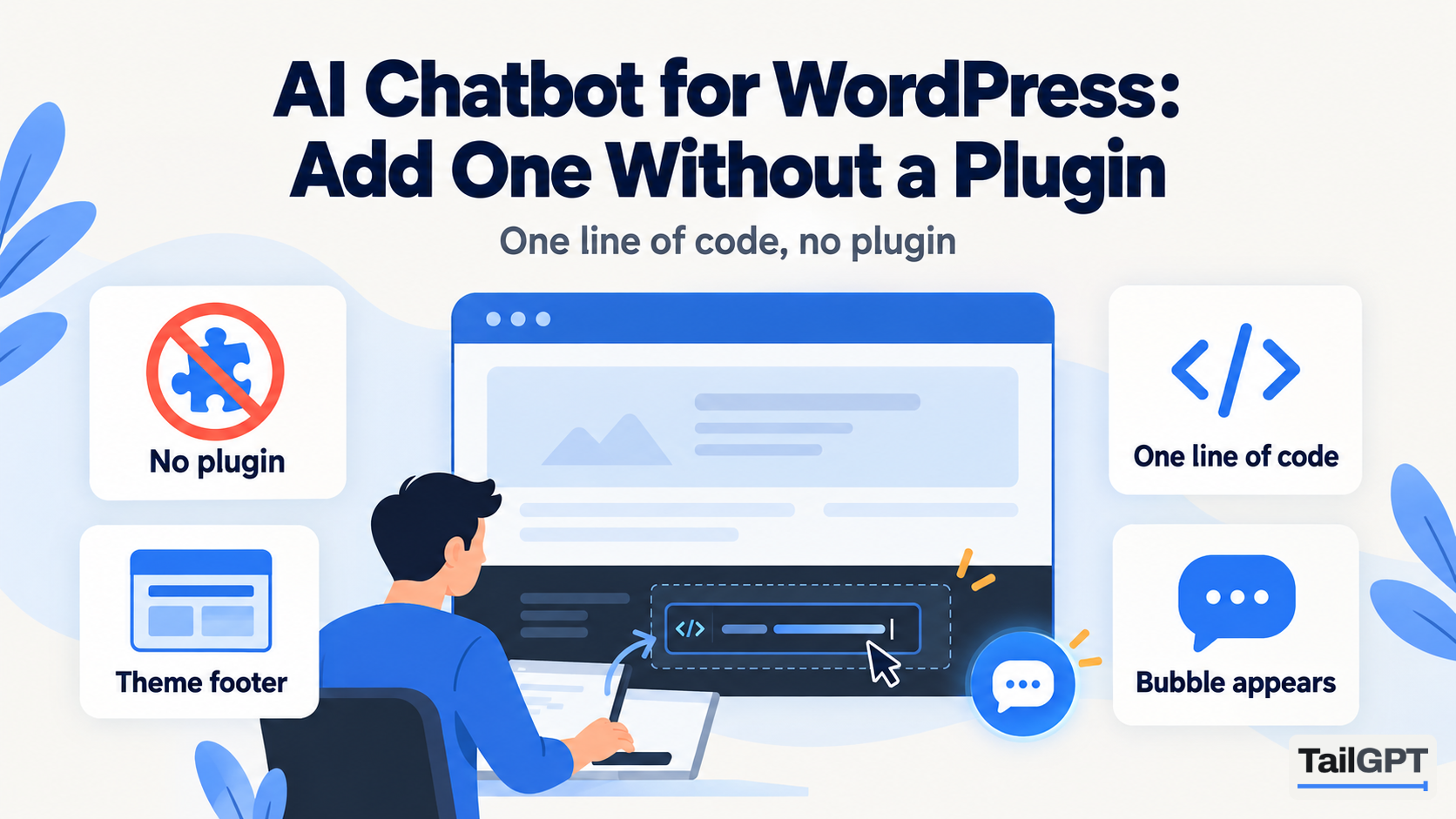
  7. AI chatbot for WordPress without a plugin: a man pasting one line of code into the theme footer and the bubble appearing, with plugins crossed out

    How-to guides

    AI Chatbot for WordPress: Add One Without a Plugin

    To add an AI chatbot to a WordPress site with TailGPT, tick the pages it should read, test it, then paste one line of code before </body> through a code plugin you choose, a child theme's footer or the wp_footer hook. There is no TailGPT plugin. WordPress.com needs a paid plan that allows plugins.

    Siddharth Kajaria · 7 October 2026 · 11 min read

    Read
  8. AI chatbot for Wix: a man adding a line of custom code to a Wix site and the bubble appearing; tiles: premium plan, connected domain, custom code, check it works

    How-to guides

    AI Chatbot for Wix: Add It With Custom Code

    To add an AI chatbot to Wix, your site needs a Premium plan with a connected domain, because Wix allows custom code only then. In TailGPT, add the website by that domain, pick its pages, then paste the one-line script in Settings, Custom Code, Body - end, on all pages, and publish.

    Siddharth Kajaria · 7 October 2026 · 10 min read

    Read
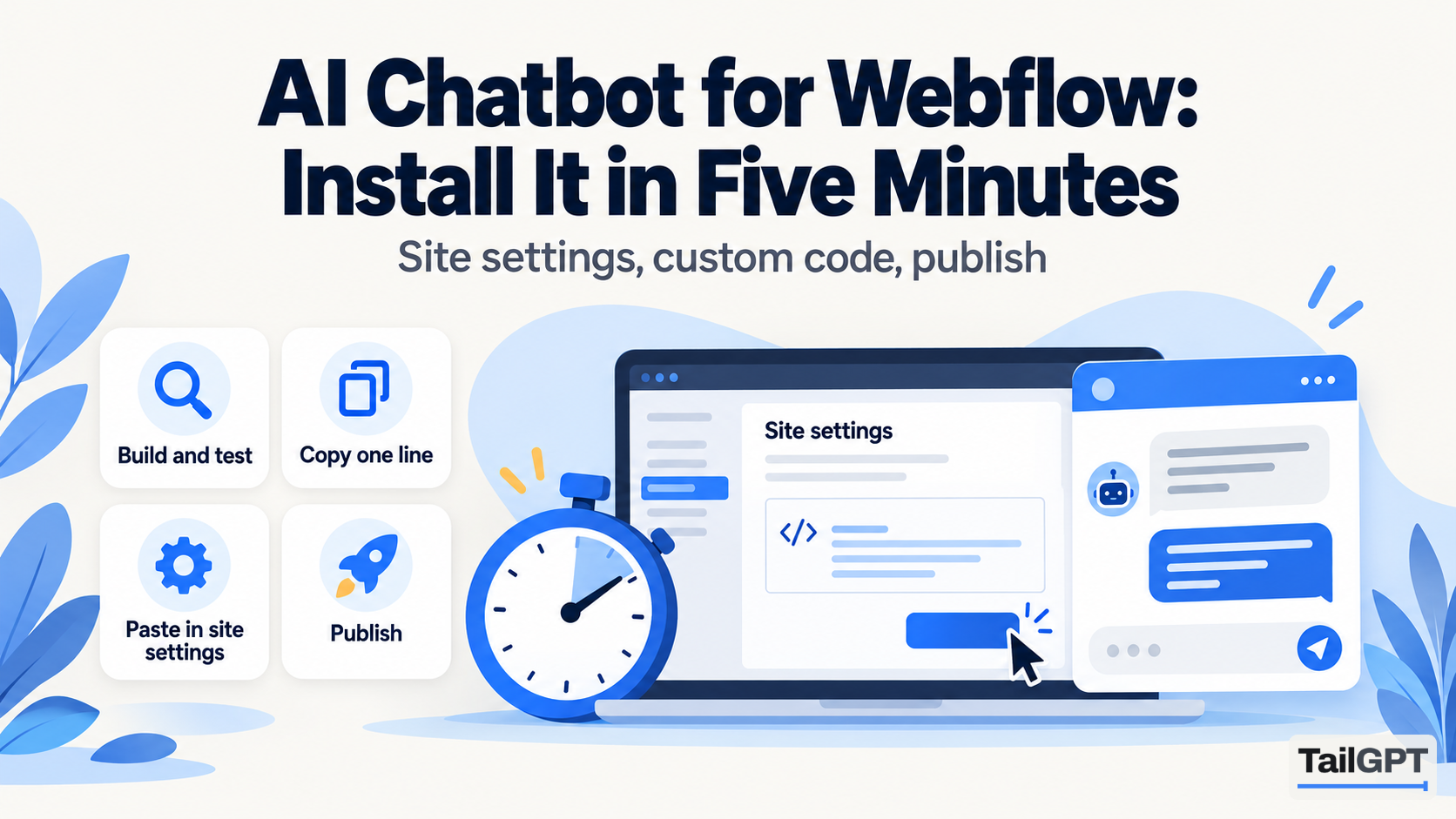
  9. AI chatbot for Webflow in five minutes: a stopwatch beside site settings with a code box and the chat open; steps: copy one line, paste in site settings, publish, build and test

    How-to guides

    AI Chatbot for Webflow: Install It in Five Minutes

    To add an AI chatbot to Webflow with TailGPT, build and test the chatbot, copy its one line of code, paste it into Site settings → Custom code → Footer code, save and publish to your custom domain. Webflow allows custom code on paid Workspace or Site plans only, so check yours first.

    Siddharth Kajaria · 7 October 2026 · 9 min read

    Read

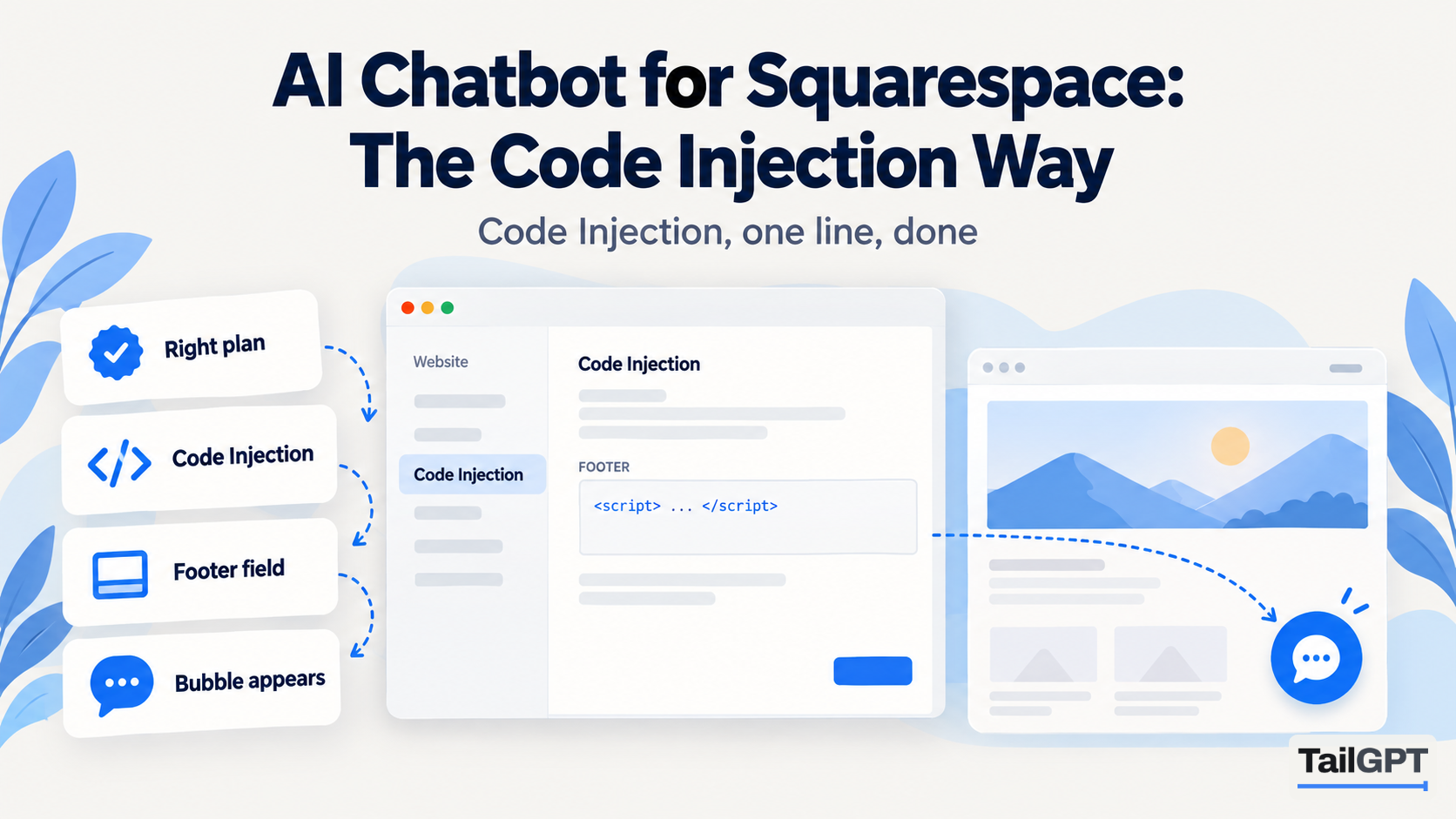
  10. AI chatbot for Squarespace: the Code Injection footer field holding one script line, and the chat bubble appearing on the site; steps: right plan, code injection, footer field

    How-to guides

    AI Chatbot for Squarespace: The Code Injection Way

    To add an AI chatbot to Squarespace, you need Core, Plus, Advanced or a legacy Business or Commerce plan, because only those have Code Injection. In TailGPT, add your site by its own domain and pick its pages, then paste the one-line script into Code Injection's Footer field, under Custom Code in the Pages panel.

    Siddharth Kajaria · 7 October 2026 · 9 min read

    Read
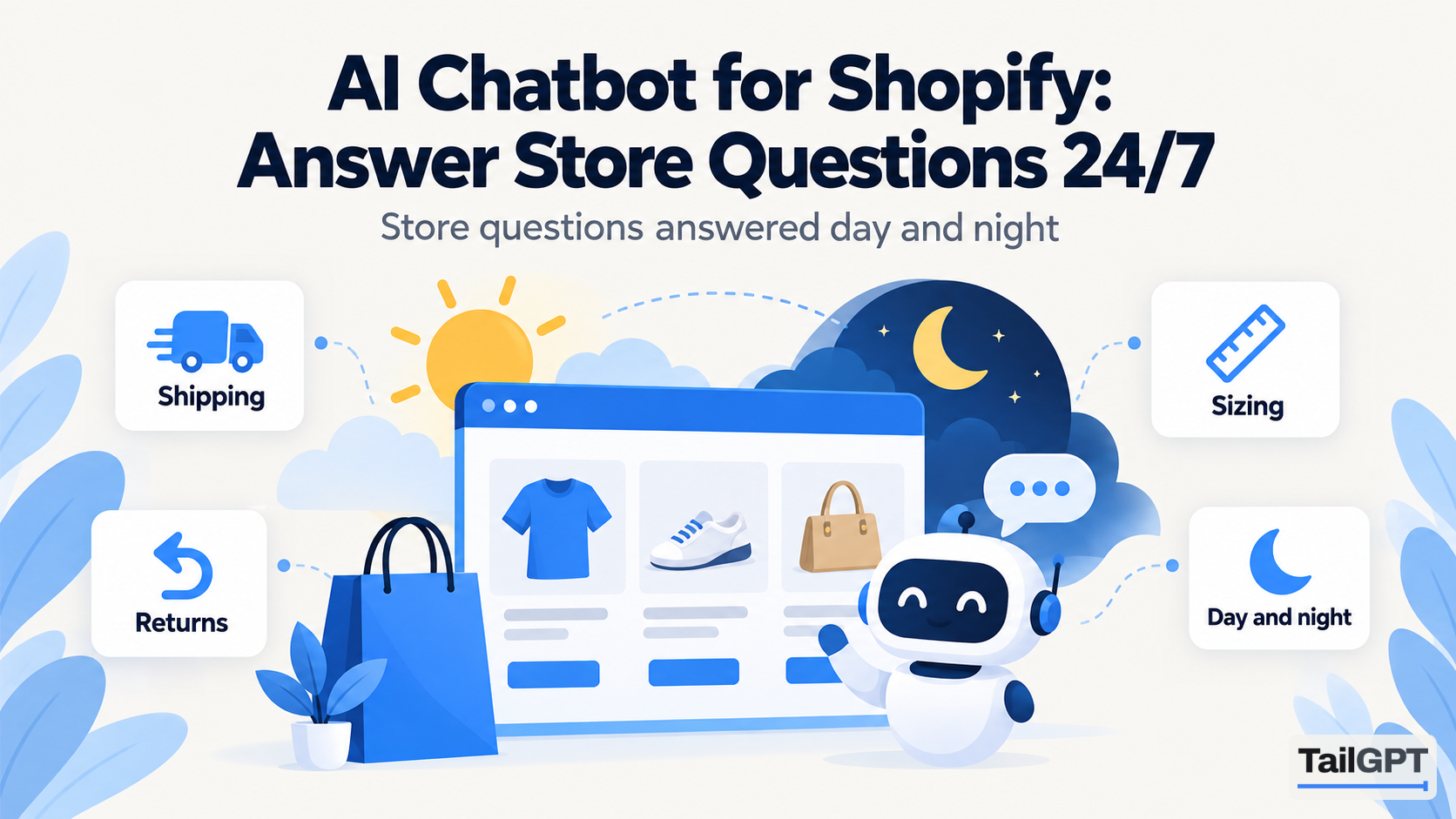
  11. AI chatbot for Shopify: a store page with a T-shirt, shoes and a bag under sun and moon, a robot answering about shipping, sizing, returns, day and night

    How-to guides

    AI Chatbot for Shopify: Answer Store Questions 24/7

    To add an AI chatbot to a Shopify store with TailGPT, tick the store pages it should read, test it, then paste one line just above </body> in theme.liquid, after duplicating your theme. There is no Shopify app. It answers shipping, returns and product questions from your pages, and cannot look up orders or live stock.

    Siddharth Kajaria · 7 October 2026 · 11 min read

    Read
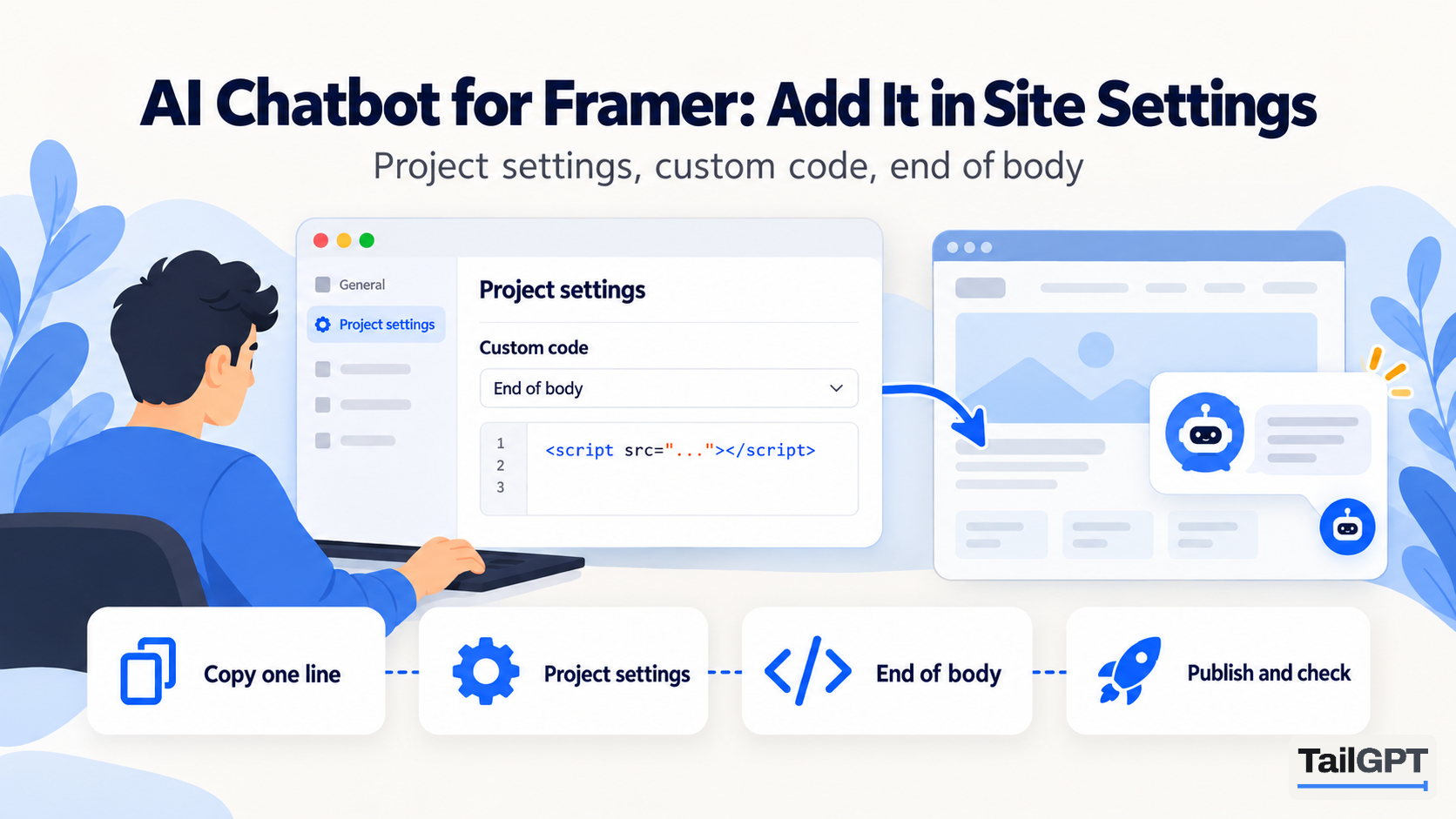
  12. AI chatbot for Framer: a man pasting a script tag into Project settings, custom code, end of body, and the bot appearing on the site; then publish and check

    How-to guides

    AI Chatbot for Framer: Add It in Site Settings

    To add an AI chatbot to Framer with TailGPT, copy the chatbot's one line of code, open Project Settings → Custom Code, add a script at the end of the body on all pages, set it to run once, then publish. Add your website to TailGPT by the address visitors actually use.

    Siddharth Kajaria · 7 October 2026 · 9 min read

    Read