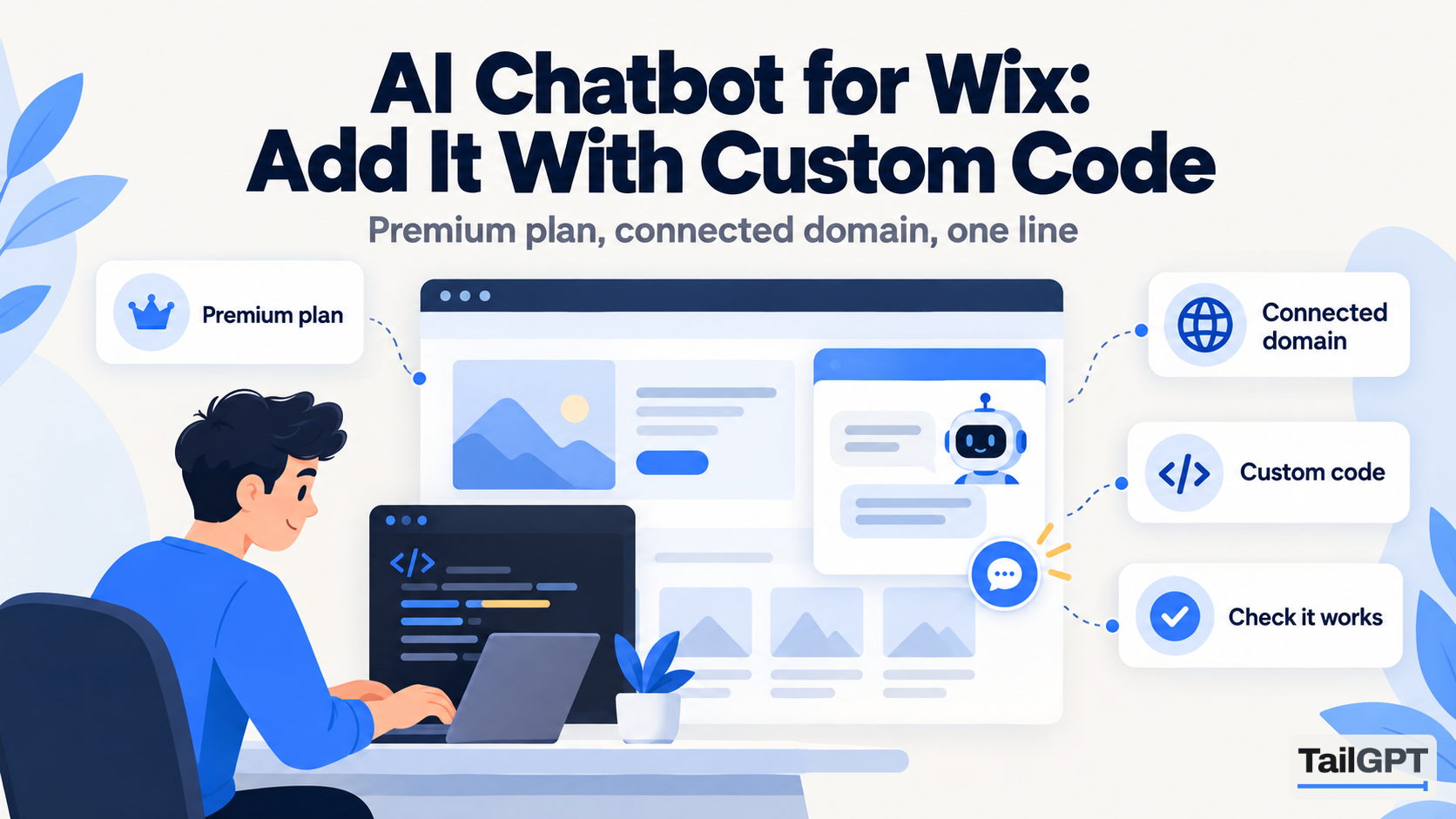
A Wix site can carry an AI chatbot that answers from its own pages, and the install is one line of code. The catch is not the code. It is that Wix only lets you add custom code once your site meets a condition most free Wix sites do not, and that the address you give the chatbot has to match the one your visitors type. This guide covers both, then the exact place the line goes and which of your Wix pages are worth having the chatbot read.
The steps for TailGPT itself, from sign-up to testing, are in how to add an AI chatbot to your website, and this page does not repeat them. Wix's menus below are from its own help pages, and TailGPT's prices are as of 4 October 2026. Both change, so check before relying on a detail.
Which Wix plan do you need to add a chatbot?
You need a Premium plan, because Wix allows custom code only on a site that is published with a connected domain. Wix's help article on embedding custom code says the site must be "published and has a connected domain" before you can add code, and its page on domain structure after purchasing a Premium plan says that once you have "upgraded to a Premium or Studio site plan, you are eligible to connect your own domain".
So the order is: upgrade the Wix site, connect your domain, publish, then add the code. Upgrading alone is not enough. The same Wix page notes that "your domain is not automatically changed once you upgrade to a site plan. You must connect your own domain for the domain name to change."
| Your Wix site is | Can it run the chatbot's code? |
|---|---|
| Free, on a Wix address (for example one ending in wixsite.com) | No. Custom code needs a connected domain |
| Upgraded to Premium, domain not yet connected | Not yet. Connect the domain and publish first |
| Premium, published, with your own domain connected | Yes |
There is no TailGPT app to find in Wix's App Market, and none is needed. The install is the script line, the same on Wix as on any other site.
Which website address should you add to TailGPT?
Add the address your visitors actually use, which on a Premium Wix site is your own domain. The chatbot's key works only on the website you added, with or without www. That is what stops someone copying the line from your page source onto their own site, and it means the address has to be right.
This matters on Wix because a site can have two addresses in its life: the free Wix address it started on and the domain you connected later. They are different hostnames. If you added the free Wix address to TailGPT and then moved to your own domain, the bubble will not show on the domain. Add the website again by its real address. If you genuinely need the chatbot on a second address as well, such as a separate domain for another region, ask TailGPT to add it. There is no screen for that yet.
A connected secondary domain is usually not a problem. Wix's custom code page says there is no need to re-add code to a secondary domain, because traffic is redirected to your primary one. Your visitors end up on the primary address, so that is the one to add.
How does TailGPT read a Wix site?
TailGPT takes the list of pages from your site's sitemap, then opens each page you tick in a real browser, the way a person would. Both points suit Wix.
The page list comes from the sitemap Wix builds for you. Wix's article on your site's sitemap file says "Wix automatically updates your site's sitemap whenever you make changes to your site", and you can see it yourself by adding /sitemap.xml to your domain. If a page is missing from TailGPT's list, check whether it is in that file.
The real browser matters because Wix pages are assembled by JavaScript as they load. A tool that only downloads the raw HTML of a page can find very little text on a site built this way. TailGPT waits for the page to load, keeps the real content and drops the menu, footer and cookie banner. When it finishes, the Websites page shows which pages were read, which failed and why.
A page behind a login cannot be read. If your Wix site has member-only pages, the chatbot will not know what is on them, which is usually what you want.
Which Wix pages should the chatbot read?
Tick the pages that answer what customers ask, and leave out the ones that only add noise. TailGPT ticks a sensible set for you, and you adjust it. A typical small Wix site, say a yoga studio in Bengaluru or a wedding photographer in Leeds, would keep:
- Home and About. What you do, where, and for whom.
- Services or classes. Each service page, with what is included and how long it takes.
- Pricing or plans. The page most questions are really about.
- Booking pages. The service descriptions, timings and cancellation terms on them. The chatbot reads these; it does not make the booking.
- FAQ, shipping and returns, policies. Short pages that answer a lot.
- Contact. Your address, phone and opening hours, so the chatbot can point people to them.
And would usually untick old blog posts, past event pages, a "coming soon" page and anything that repeats another page. On the free trial you can have up to 500 pages read; Starter covers 1,000 pages and Growth 7,500 across your websites, as of 4 October 2026. A page here means one address on your site, however long it is. The reasoning behind the choice is in how to choose which pages your chatbot should read.
If something customers ask about lives in a PDF, such as a price list or a course brochure, upload the file to TailGPT rather than building a Wix page for it. Documents do not count against the page allowance.
Where exactly does the code go in Wix?
It goes in Settings, under Custom Code, placed at the end of the body on all pages. Copy the line from your chatbot in TailGPT first; it appears once you have chosen a plan, and looks like <script src="…/widget.js" data-key="…"></script>. Then, following Wix's custom code article:
- In your Wix site's dashboard, go to Settings.
- Click Custom Code, in the Development & integrations section.
- Click + Add Custom Code at the top right.
- Paste the TailGPT line into the code box and give it a name you will recognise, such as "TailGPT chatbot".
- Under Add Code to Pages, choose All pages.
- Wix then asks whether to load the code once per visit or on each page your visitor opens. The line draws only one bubble per page, so either should be safe; check it after publishing by clicking through a few pages.
- Under Place Code in, choose Body – end.
- Click Apply.
Body – end is the Wix name for "just before </body>", which is where TailGPT's line belongs. Choosing specific pages instead of all pages also works, if you only want the chatbot on, say, your services and pricing pages. If your plan allows more than one chatbot (Growth has three, as of 4 October 2026), you can use this to run two on one Wix site: a Sales one on product pages and a Support one on help pages, each with its own line, both answering from the same read of the site.
What happens to the code if you change your Wix domain?
Wix deletes it. The custom code article says: "If you assign a different domain to your site, your code snippets will be deleted." So a domain change means two jobs, not one. Paste the line into Custom Code again, and add the new domain to TailGPT, because the chatbot's key is tied to the website address you added.
Nothing in TailGPT is lost in the meantime. The chatbot, its look and the pages it has read are all still there; it simply has nowhere to appear until the line is back on a site whose address matches.
How do you check the chatbot is working on Wix?
Open your live site in a normal browser window, find the bubble in the corner you chose, and ask it a question your pages answer. Then look at the Chatbots page in TailGPT. When TailGPT sees the bubble loading on your website, the chatbot's state changes to Live, so you do not have to take a browser's word for it.
If there is no bubble, these are the usual Wix causes, in order:
- The domain is not connected. Without a connected domain Wix does not run custom code at all.
- The site has not been published since the change. Publish, then reload the live page.
- The address in TailGPT is not the one in the browser. A free Wix address and your own domain are different websites to TailGPT's key.
- The domain changed and Wix removed the snippet, as above.
- The TailGPT plan is not live, or the month's questions have run out. The bubble goes quiet until the month resets, you upgrade or you buy a top-up of questions.
Once it is live, read what people ask. Show chats in TailGPT lists every conversation as chat bubbles, with search and a 7, 30 or 90-day filter. When you change a page on Wix, press Re-crawl so the chatbot reads it again; there is no automatic refresh. Starter includes 2 re-reads a month and Growth 8, as of 4 October 2026, and plan details are on the pricing page. The full journey, including what happens when a plan ends, is in how TailGPT works.