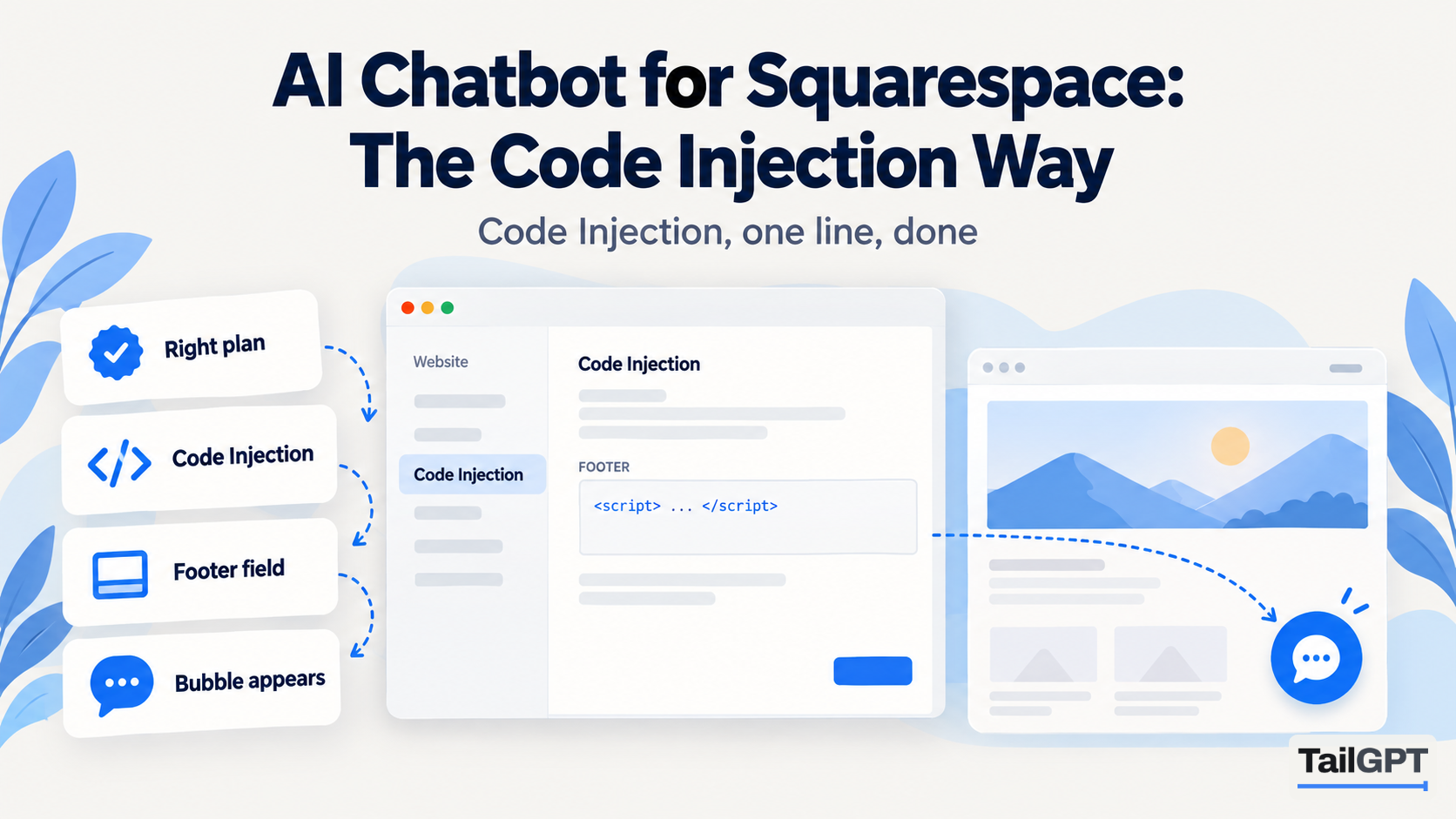
Squarespace has one box for code that runs on every page of your site, called Code Injection, and an AI chatbot goes in its Footer field. Getting there is quick once you know two things: which Squarespace plans have the box at all, and where Squarespace has put it this year. This guide covers both, the address to give the chatbot, which pages it should read, and what it can and cannot do on a Squarespace Commerce store.
The TailGPT side, from sign-up to testing, is in how to add an AI chatbot to your website, and is not repeated here. Squarespace's menus and plan names below are from its own help pages, and TailGPT's prices are as of 4 October 2026. Both change, so check before relying on a detail.
Which Squarespace plans allow Code Injection?
Core, Plus and Advanced do, along with some legacy plans; the Basic plan does not. Squarespace's code injection article says "Code injection is available in the Core, Plus, Advanced, and some legacy billing plans", and its premium features page lists "Code injection - site-wide and per-page" among the premium features of Core, Plus and Advanced.
For the legacy plans, Squarespace's page on legacy website billing plans puts custom code on Business and above, not on Personal. Those plans closed to new sign-ups in February 2026, but plenty of sites are still on them.
| Squarespace plan | Code Injection |
|---|---|
| Basic | No |
| Core, Plus, Advanced | Yes |
| Legacy Personal | No |
| Legacy Business, Commerce Basic, Commerce Advanced | Yes |
A code block on a page is not a way round this. Squarespace's code blocks article says adding JavaScript to code blocks is available on the same plans: Core, Plus, Advanced, Business, Commerce Basic and Commerce Advanced. If your site is on Basic or Personal, the chatbot needs a plan change first.
There is no TailGPT extension to install from Squarespace. The chatbot is one line of code, the same on Squarespace as on any other site.
Where is Code Injection in Squarespace now?
It is in the Pages panel, under Custom Code at the bottom. Squarespace's article on the Pages panel says to "Click Custom Code at the bottom of the panel to add custom CSS, HTML, and other code to your site", and lists Code Injection there for adding "custom HTML or scripts to your site's pages".
Older guides, including many still ranking in search, send you to Settings, then Advanced or Developer tools. Squarespace has moved things around more than once, so if your screen does not match a guide, look in the Pages panel first. Squarespace's own help articles also link straight to the Code Injection panel.
How do you add the chatbot in Squarespace Code Injection?
Paste the line into the Footer field and save. Copy the line from your chatbot in TailGPT first; it appears once you have chosen a plan, and looks like <script src="…/widget.js" data-key="…"></script>. Then:
- Log in to your Squarespace site and open the Pages panel.
- Scroll to the bottom and click Custom Code, then Code Injection.
- Find the Footer field and paste the TailGPT line. If something is already there, such as an analytics tag, put the line on a new line after it.
- Click Save.
The Footer field is the right one because, in Squarespace's words, "Code added here is injected before the closing </body> tag on every page in your site." That is exactly where TailGPT's line belongs. Do not use the Header field or the per-page Page Header Code Injection, which put code in the page's head instead.
Squarespace's article also warns that its support team "can't help you add custom code to your site or troubleshoot issues that arise from using it." For a single script line in the Footer that rarely matters, but if your editor preview ever shows an error about injected code, Squarespace offers a Disable Scripts in Preview option, and the live site is unaffected.
Which website address should you add to TailGPT?
Add your own domain, the one visitors type. The chatbot's key works only on the website you added, with or without www, which stops anyone copying it onto another site.
Every Squarespace site also has a built-in address ending in squarespace.com. That is a different hostname from your own domain, so a chatbot set up for one will show no bubble on the other. If you added the built-in address while building and have since connected your domain, add the website again by the domain. If you really need the chatbot on a second address as well, ask TailGPT to add it. There is no screen for that yet.
How does TailGPT find your Squarespace pages?
It reads your site's sitemap, which Squarespace builds and updates for you. You can see it by adding /sitemap.xml to your domain. Squarespace's page on viewing your site map notes three things worth knowing before you add the site:
- "Sitemaps aren't available for trial sites or parking pages." Add the website once it is live on a plan.
- A private or password-protected site needs its availability set to Public for the sitemap to load.
- Password-protected pages, pages hidden from search results and disabled pages are left out of the sitemap, so they will not appear in TailGPT's list either.
TailGPT then opens each page you tick in a real browser, keeps the real content and drops the menu, footer and cookie banner. The Websites page shows which pages were read, which failed and why. A page behind a login cannot be read.
Which Squarespace pages should the chatbot read?
The pages that answer what customers ask: services or products, pricing, shipping and returns, FAQ, about and contact. TailGPT ticks a sensible set and you adjust it. Untick old blog posts, past event pages and campaign landing pages that no longer apply. A florist in Mumbai might keep the delivery-areas page and the same-day cut-off and drop three years of seasonal posts; a therapy practice in Manchester might keep fees, session length and cancellation terms.
A page in TailGPT means one address on your site, however long. As of 4 October 2026, the free trial reads up to 500 pages, Starter 1,000 and Growth 7,500 across your websites. How to choose which pages your chatbot should read has the reasoning. Price lists or brochures kept as PDF or Word files can be uploaded instead, and documents do not count against the page allowance.
What can the chatbot do on a Squarespace Commerce store?
It can answer from your product, shipping, returns and policy pages, and it cannot take an order or look one up. A visitor can ask whether a candle comes in a larger size, how long delivery to Pune takes or how returns work, and get an answer from your pages. The Sales role leans towards products and pricing and points people to the next step, such as the product page.
What it does not do:
- Take orders or payments. The purchase happens in your Squarespace checkout, as before.
- Look up an order. "Where is my parcel?" needs your order system, which TailGPT has no access to.
- Know live stock or today's price. It knows what your pages said when TailGPT last read them. After changing prices or adding products, press Re-crawl. Re-reads come from a monthly allowance (2 on Starter, 8 on Growth, as of 4 October 2026) and there is no automatic refresh.
- Appear in checkout. Squarespace's code injection article says "Checkout pages don't support code", so the bubble will not show there.
What an online store's chatbot should be answering is covered in AI chatbot for an online store.
What happens to the chatbot if you downgrade your Squarespace plan?
The bubble disappears, because Squarespace switches Code Injection off. Its premium features page says that on downgrading to Basic, "Code injection is disabled. The code stays in the Code injection panel for your reference, but it won't affect your site and it's not possible to edit it."
Your TailGPT chatbot is untouched by this: its settings and the pages it read are kept. Moving back to a plan with Code Injection brings the bubble back. The same is true the other way round. If your TailGPT plan ends, the bubble stops appearing on your Squarespace site and nothing is deleted; renewing brings it back without reading the site again.
How do you check the chatbot is working on Squarespace?
Open your live site in a private browser window, so you see what a visitor sees rather than the editor, and ask the bubble a question your pages answer. In TailGPT, the chatbot's state changes to Live once it sees the bubble loading on your site.
No bubble usually means one of these: the plan has no Code Injection, the line went in the Header rather than the Footer, the address in the browser is not the one you added to TailGPT, the site is still a trial or private, or the TailGPT plan is not live or out of questions for the month. Plan details are on the pricing page. For a site on Wix instead, the same job is in AI chatbot for Wix.