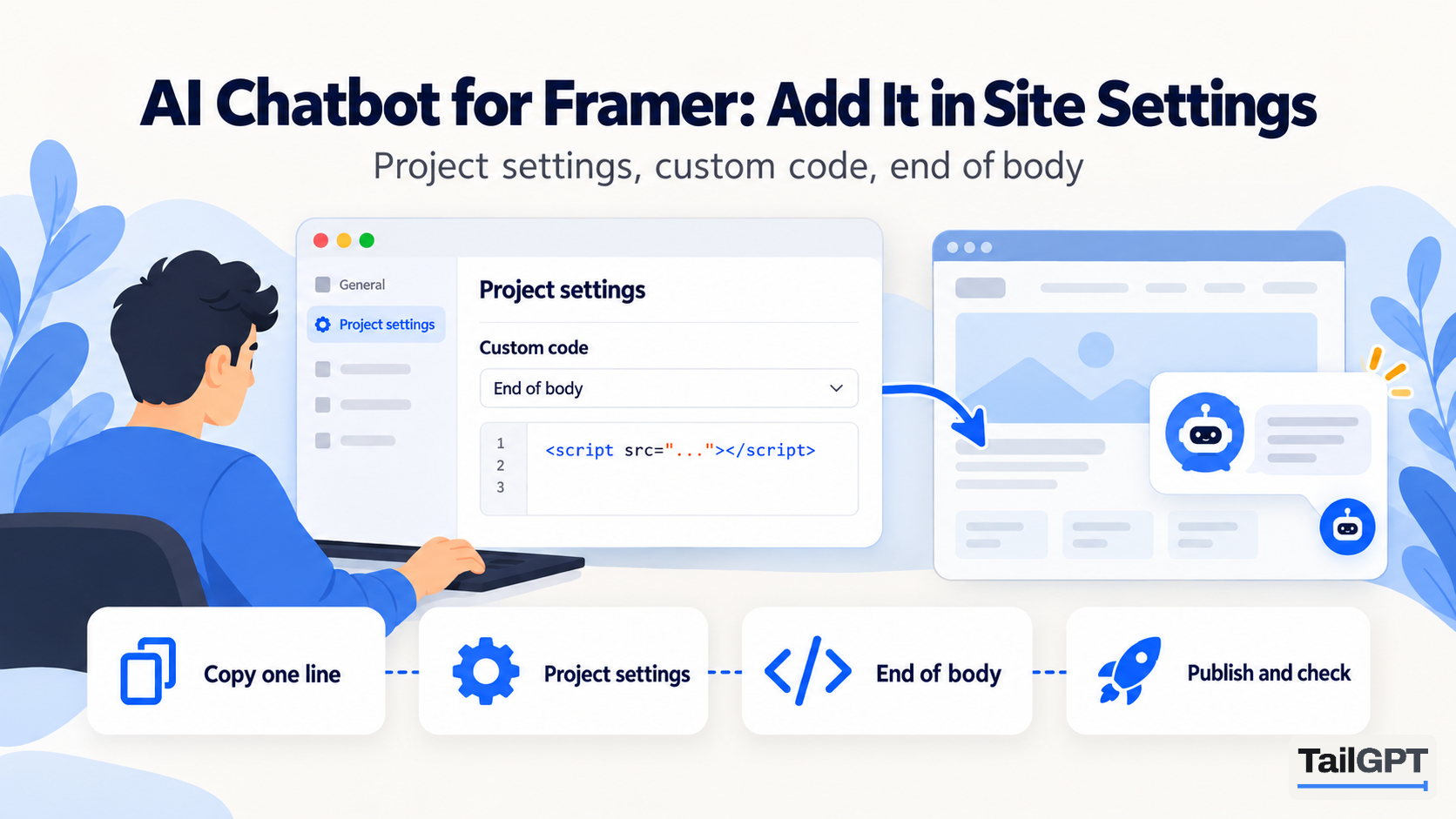
Framer sites are quick to build and lovely to look at, and they still leave visitors with questions the pages answer somewhere further down. An AI chatbot that answers from those pages puts the answer one question away. On Framer it goes in as a single custom code script, and this guide covers the Framer side: the menu, the three choices Framer asks you to make, the address to add, and why the bubble does not show in the editor.
A note on the name. Framer's current help article calls the menu Project Settings → Custom Code, while some of Framer's own pages and older lessons say Site Settings. They are the same place, and the steps below use the help article's wording.
The steps from sign-up to a finished chatbot are the same on every website, and how to add an AI chatbot to your website walks them in order. Framer's menus and plans below are from its own help and pricing pages as of 4 October 2026.
What do you need before you start?
You need a published Framer site, a TailGPT plan, and to know which address your visitors use. Framer's help article on custom code does not state a plan requirement, so check your plan in Framer's settings if the Custom Code tab is not available to you. The article itself lists "chat and support widgets" among the things custom code is for.
On the TailGPT side, you can build and test the chatbot on the free trial, but the line of code appears only once you choose a plan. As of 4 October 2026, plans start at ₹4,000 a month; the pricing page has the full table.
Which address should you add to TailGPT, your domain or the Framer one?
Add the address your visitors actually type. The TailGPT key works only on the website you added, with or without www. Any other address is a different website as far as the key is concerned, and shows no bubble.
Framer sites often have more than one address. Framer's custom domain article explains that a site is hosted on a Framer subdomain by default, that you can add a free Framer subdomain (on framer.website and a few similar names), and that you can connect a domain you own under Site Settings → Hosting → Domains. Framer's pricing page shows the free plan with a free Framer domain and your own domain on paid plans.
- Visitors use your own domain: add that. The Framer address will show no bubble, which is usually what you want.
- Visitors use a Framer address (one ending in
framer.websiteorframer.app, say): add that address. - You want the bubble on both, for example while you move to a new domain: add one, and ask TailGPT to add the other. There is no screen for it; it is added for you.
Which Framer pages should TailGPT read?
The ones that answer what visitors ask. After you add your website, TailGPT lists its pages from the site's own page list (its sitemap). Framer's sitemap article says Framer automatically generates a sitemap for every published site and keeps it up to date as you publish, so there is nothing to switch on.
Two things are particular to Framer sites:
- Long single pages. Many Framer sites are one long landing page plus a handful of others. That is fine: a TailGPT page is one page of the website, whatever its length, so a long home page counts once.
- CMS pages. A Framer CMS collection creates a page for every item, and each counts as a page. Tick services, products and help articles; leave out blog posts nobody asks about, and author or category pages that are only lists of links.
Framer sites lean on animation, and that is not a problem for reading them. TailGPT opens each page in a real browser, the way a person would, keeps the real content and drops the menu, footer and cookie banner. What it cannot read is text that is really a picture, such as a pricing table exported as an image, so put prices on the page as text. When reading finishes, the Websites page shows which pages were read, which failed and why. For the rest of the choosing, how to choose which pages your chatbot should read has a short audit.
How do you add the TailGPT line in Framer?
You add it as a new script under Project Settings → Custom Code, placed at the end of the body, on all pages. These steps follow Framer's help article:
- In TailGPT, open the chatbot and press Copy beside its line of code. It looks like
<script src="…/widget.js" data-key="…"></script>. - In Framer, open Project Settings and select the Custom Code tab from the left sidebar.
- Click Add Script, or the + icon if you already have code there.
- Give it a name you will recognise later, such as "TailGPT chatbot", and paste the line.
- For placement, choose the end of the body. Framer offers the start or end of the head and of the body, and Framer's developer reference describes the last as injecting the code "at the end of the <body> tag", which is where TailGPT's line belongs.
- Leave the page list alone so it runs on all pages, unless you want the chatbot on some pages only.
- For how often it runs, choose Once. The next section explains why.
- Publish the site, or press Update if it is already published.
Should the script run once or on every page visit?
Choose Once for a chat bubble. Framer's help article defines the two options this way: select Once "to add and execute the code a single time, such as when adding event listeners", and select Run on every page visit "to execute the code each time someone visits the page".
The TailGPT line does one job: it loads the bubble. Once the bubble is on the page, it has nothing more to do as a visitor moves around your site, so running it a single time is the right fit. Run on every page visit is for code that must react to each page, which a chat bubble does not. If the line does run a second time on the same page, TailGPT still draws one bubble rather than two.
After publishing, check it rather than trusting it: open your live site, open the bubble, then click through to two or three other pages and make sure the bubble is still there.
Why doesn't the bubble show in the Framer editor?
Because Framer does not run custom code in the editor's preview. Framer's Academy lesson on custom code puts it plainly: Framer does not load Custom Code in the canvas preview, so publish the site and open the live page in a browser to test the script.
Framer's custom domain article covers publishing: click Publish in the top-right corner, and use the Update button to publish later changes. Then open the site at the address you added to TailGPT. A Framer address you did not add will show no bubble even after publishing.
Can different Framer pages show different chatbots?
Yes. Several chatbots can share one website's content, each with its own role, look and line of code, and the number of chatbots is a plan limit. In Framer, add each chatbot's line as its own script and, in Framer's words, select the specific pages it should run on from the list. A Sales chatbot might run on your pricing and product pages and a Support chatbot on your help pages.
Only one bubble appears on a page, so give each page one chatbot, and do not leave either script set to all pages. Choosing the role for each is covered in how to set your chatbot's role.
How do you know the chatbot is working on your Framer site?
Open the published site at the address you added, look for the bubble in the corner you chose, and ask it something your pages answer. Then check the Chatbots page in TailGPT. A chatbot marked Live means TailGPT has seen the bubble load on your site; that state is not a guess.
If there is no bubble, check these in order:
- Did you publish or press Update? The editor preview never shows it.
- Are you on the address you added? Your own domain and a Framer address are different websites to the key.
- Is the script on this page? If you picked specific pages, this one may not be among them.
- Is your TailGPT plan live? The bubble appears only while it is, and goes quiet when the month's questions run out.
What happens when you change your Framer site later?
Publishing in Framer does not reach the chatbot until TailGPT reads the site again. There is no automatic refresh. Press Re-crawl after a change that matters, such as a new price or a revised refund policy; re-reads come from a monthly allowance, two a month on Starter as of 4 October 2026. A new CMS item also needs ticking before it is read.
Changing the chatbot's name, colour, greeting or corner happens in TailGPT and applies at once, with no Framer update and no new line to paste. For the full journey, see how TailGPT works.