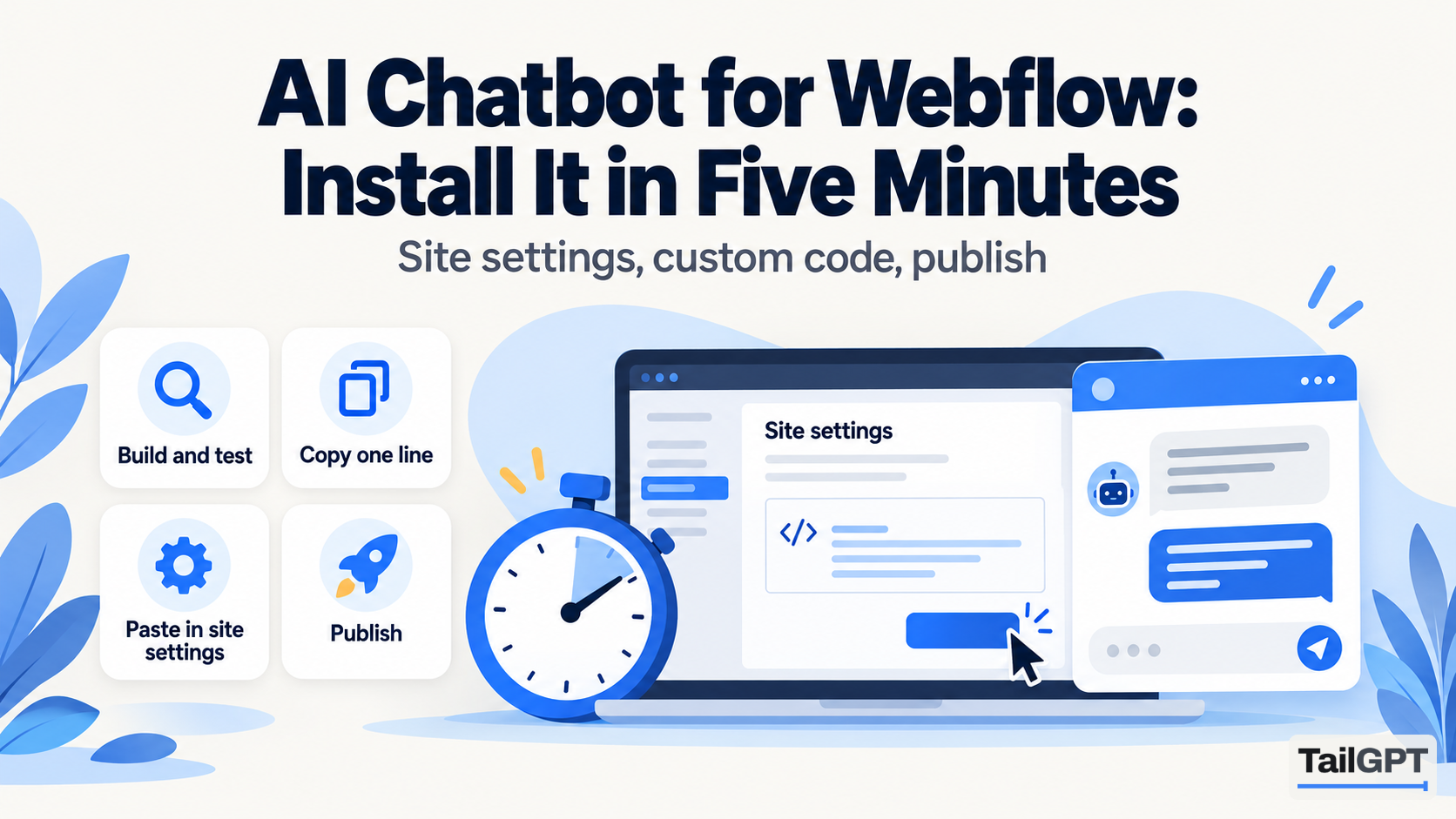
A Webflow site is built for looks, and that is exactly why visitors still email you to ask what your pages already say. An AI chatbot that answers from those pages closes the gap, and on Webflow it goes in through one box in Site settings. This guide covers the Webflow side: where the line goes, which address to add, which CMS Collection pages to tick and what to check after you publish.
The steps from sign-up to a finished chatbot are the same on every website, and how to add an AI chatbot to your website walks them in order. Webflow's menus and plans below are from its own help and pricing pages as of 4 October 2026; check them before you rely on a detail.
What do you need before you start?
You need a Webflow plan that allows custom code, a TailGPT plan, and your site published at the address your visitors use. The first is the one that catches people out.
Webflow's custom code help page says that if you have a Core, Growth, Agency or Freelancer Workspace, or your site has an active Site plan, Site managers and Designers can add custom code. Webflow's pricing page lists custom code on its paid site plans and not on the free Starter plan. If the Custom code fields look locked, check your plan in Webflow's settings before anything else.
On the TailGPT side, you can build and test the chatbot on the free trial, but the line of code appears only once you choose a plan. As of 4 October 2026, plans start at ₹4,000 a month; the pricing page has the full table.
Which address should you add to TailGPT, webflow.io or your own domain?
Add the address your visitors actually type, which for most businesses is your own domain. The TailGPT key works only on the website you added, with or without www. Any other address is a different website as far as the key is concerned, and shows no bubble.
That matters on Webflow because every site has two kinds of address. Webflow's staging subdomain page describes them: the staging subdomain (such as yoursite.webflow.io) and your custom domain (such as yourdomain.com). Webflow suggests the staging subdomain for testing custom code, which is good advice for most scripts. For this one, a bubble on webflow.io needs that address added to your TailGPT account too. There is no screen for it; you ask TailGPT and it is added for you.
If your site lives only on webflow.io for now, add that address. When you later connect your own domain, ask TailGPT to add the new address so the same line keeps working.
Which Webflow pages, including CMS Collection pages, should TailGPT read?
Tick the pages that answer customer questions, and be choosy with Collections. After you add your website, TailGPT lists its pages from the site's own page list (its sitemap). Webflow can generate that sitemap automatically under Site settings → SEO tab → Sitemap, and updates it each time you publish, so it is worth checking the setting is on.
A Collection is where Webflow sites usually grow. Webflow's Collection pages help explains that each Collection has a template that powers an individual page for every item: every blog post, every project, every team member. Each of those item pages is one page in TailGPT's count, however short it is.
| Collection | Usually tick? | Why |
|---|---|---|
| Services, courses or packages | Yes | What you offer, what it includes, what it costs |
| Products | Yes | Sizes, materials, availability and price |
| Locations or branches | Yes | Addresses, timings and which branch offers what |
| Help articles or FAQs with their own pages | Yes | Already written as answers |
| Portfolio or case studies | Rarely | Mostly images, little a customer would ask about |
| Blog posts | Selectively | Keep the few that answer real questions; skip news and old campaigns |
| Team members, authors, categories | No | Names and lists of links, not answers |
A Bengaluru interior design studio is a typical case. Its Projects Collection might hold sixty item pages that are almost all photographs, while its six Services pages hold everything people ask: what a 2BHK fit-out includes, how long it takes, what the consultation costs. Tick the six, and the chatbot answers better with a tenth of the pages. How to choose which pages your chatbot should read has a fifteen-minute audit for deciding the rest.
Does TailGPT read Webflow sites with lots of interactions?
Yes. TailGPT opens each page you ticked in a real browser, the way a person would, so a page that draws itself with scripts or animates in as you scroll is read as it appears, with the menu, footer and cookie banner dropped. Webflow sites tend to be heavy on interactions, and that is the reason it reads pages this way rather than skimming the raw file.
A few things on a design-led site are worth checking all the same:
- Text inside images. A price list exported as a graphic looks like text to a visitor but is a picture. Put the prices on the page as real text, or upload the price list as a document once you have a plan.
- Content embedded from another service. A form, calendar or document shown in an embedded frame belongs to that other service, not to your page.
- Answers hidden behind a click. Tabs, sliders and accordions are common on Webflow. Ask a test question whose answer sits in one of them, and see what comes back.
When reading finishes, the Websites page shows which pages were read, which failed and why. That list, plus a few test questions with Try demo, tells you more than any guess about how your layout will behave.
Where exactly does the line go in Webflow?
It goes in the Footer code box in Site settings, which Webflow says "appears before the closing </body> tag in your site's HTML markup and applies to your entire site". That is exactly where TailGPT's line belongs.
- In TailGPT, open the chatbot and press Copy beside its line of code. It looks like
<script src="…/widget.js" data-key="…"></script>. - In Webflow, open your site's Site settings and go to the Custom code tab.
- Paste the line into the Footer code section. If other scripts are already there, put it on a line of its own.
- Click Save changes.
- Click Publish, tick your custom domain, and publish to the selected domains.
The last step is the one people skip. Webflow's help page is plain about it: the effects of custom code appear in preview mode, but they won't go live until your site is published. And Webflow's publishing page notes that the publish menu covers both the staging subdomain and the custom domain, so check the custom domain is ticked.
Space is not a concern. Webflow raised the limit to 50,000 characters of custom code, and the help page applies it to the Head code and Footer code sections each. The TailGPT line is well under two hundred.
Can you show the chatbot on only some Webflow pages?
Yes. Instead of Site settings, use a page's own settings: open the site in the Designer, open Page settings for that page, and paste the line into the Before </body> tag section under Custom code, as Webflow's help page describes. Code there applies to that page only.
That is useful when you run more than one chatbot on the same website, each with its own role and its own line of code: a Sales chatbot on product pages, a Support chatbot on help pages. The number of chatbots is a plan limit. Two rules keep it tidy:
- One chatbot per page. Only one bubble appears on a page, so do not put a second chatbot's line on a page that already has one.
- Nothing site-wide when you split. A line in Footer code reaches every page. If you are placing chatbots page by page, keep the Footer code box free of TailGPT lines.
Choosing the role for each is covered in how to set your chatbot's role.
How do you know the chatbot is working on your Webflow site?
Open your custom domain in a browser, look for the bubble in the corner you chose, and ask it something your pages answer. Then check the Chatbots page in TailGPT. A chatbot marked Live means TailGPT has seen the bubble load on your site; that state is not a guess.
If there is no bubble, check these in order:
- Did you publish to the custom domain? Saved in Site settings is not the same as live.
- Are you on the address you added? The
webflow.ioaddress shows nothing unless it was added for you. - Is your Webflow plan one that runs custom code? See the first section.
- Is your TailGPT plan live? The bubble appears only while it is, and goes quiet when the month's questions run out.
What happens when you change your Webflow site later?
Publishing new content in Webflow does not reach the chatbot until TailGPT reads the site again. There is no automatic refresh. Press Re-crawl after a change that matters, such as a new price or a revised refund policy; re-reads come from a monthly allowance, two a month on Starter as of 4 October 2026. A new Collection item also needs ticking before it is read.
The other direction is easier. Changing the chatbot's name, colour, greeting or corner happens in TailGPT and applies at once, with no Webflow republish and no new line to paste. For the full journey, including what happens when a plan ends, see how TailGPT works.