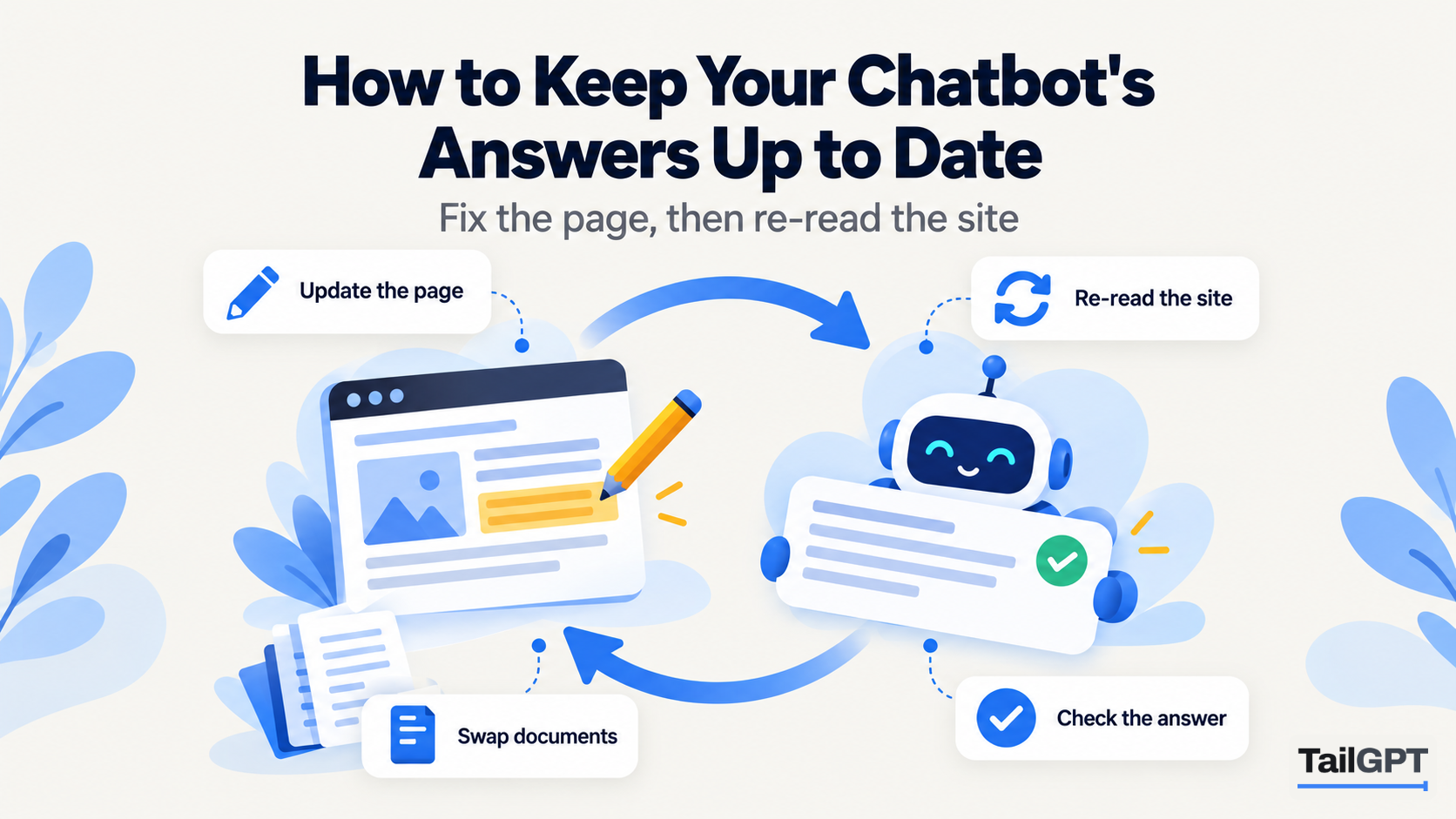
A chatbot that answered every question correctly in March can be quietly wrong by May. Nothing broke. Your prices went up, the returns window changed, the summer timings started, and the bot is still repeating what your website said the day it was read. This guide is about the work after launch: how to tell when answers have gone stale, what to update, and a routine small enough that it actually gets done.
The steps are TailGPT's, and the plan figures are as of 4 October 2026.
Why does a chatbot's answer go out of date?
A chatbot goes out of date because it answers from what it last read, not from your live website. When TailGPT reads your site, it keeps the content of the pages you ticked as they were at that moment. When you upload a document, it keeps that document as it was uploaded. Every answer comes from that copy.
So the moment you edit a page, the copy and the website disagree, and they keep disagreeing until the site is read again. A visitor who asks about delivery charges gets last month's charges, stated plainly and confidently, because that is what the bot was given.
TailGPT does not refresh on a schedule. There is no nightly or weekly re-read running in the background. The site is read again when you ask for it, and not otherwise. That puts the timing in your hands, which is useful the night before a sale, and it also means somebody has to remember.
How do you update the chatbot after you change your website?
Edit the page on your website first, then have TailGPT read it again. The order matters: a re-read of a page you have not yet published changes nothing.
- Publish the change on your website. Check it on the live page, not in your builder's editor. Several builders keep edits in a draft until you publish.
- Open the website on the Websites page. The pages you ticked are listed, with any that failed last time and the reason.
- Press the button to read the selected pages. TailGPT asks you to confirm, and the confirmation says plainly that it replaces the pages your chatbot answers from and that uploaded documents are kept.
- Let it run. It takes a few minutes in the background, and you can close the tab.
- Check the result. The Websites page shows which pages were read and which failed, and why. A page that failed is worth fixing before you rely on it.
- Ask the changed question. Open the chatbot and use Try demo to ask exactly what a visitor would: "What is the delivery charge to Nagpur now?" If the new figure comes back, you are done.
Two things the re-read does not do. It does not touch your uploaded documents; they stay exactly as they were. And it reads the pages that are ticked, nothing else, so a page the chatbot has never read cannot answer anything. If you have published a new page that answers a common question, make sure it is ticked before you read again.
How many re-reads does your plan include?
Re-reads come from a monthly allowance that belongs to the whole account. As of 4 October 2026:
| Plan | Website re-reads a month | Websites live at once |
|---|---|---|
| Starter (₹4,000 a month) | 2 | 1 |
| Growth (₹8,000 a month) | 8 | 3 |
| Enterprise (custom) | Up to 2,000 | Up to 1,000 |
The allowance is one pool, shared by every website on the account. On Growth with three websites, that is eight re-reads between the three of them, not eight each. The Subscription page shows how many you have used this month and the date they reset.
When the month's re-reads are used up, TailGPT says so rather than failing quietly: the allowance comes back when the month resets, or sooner with a bigger plan. Top-ups do not help here. They sell extra questions only, never re-reads. The full plan table is on the pricing page.
How do you make two re-reads a month go far enough?
Batch your changes, and keep one in reserve. On Starter, two a month is plenty for most small sites if you treat a re-read as the last step of a round of edits rather than something you press after every typo.
- Collect edits, then read once. If the price list, the delivery page and the festive timings all change this week, make all three changes, then read the site once.
- Keep the second for surprises. A supplier raises a price mid-month, a courier stops serving a region. That is what the spare one is for.
- Use documents for the fast-moving facts. A price list that changes often is cheaper to keep current as an uploaded file, because replacing a document does not use a re-read at all (more on that below).
- Plan around known dates. A sale, an admission season or a menu change has a start date. Publish the pages a day ahead and read the site then, so the chatbot is right from the first visitor.
If you regularly run out before the month ends, that is a sign the site changes more than the plan assumes, and Growth's eight a month is the honest fix.
How do you change which pages the chatbot reads?
Tick or untick pages in the picker on the Websites page, then read the site again. Changing the ticks on their own changes nothing the chatbot says. An unticked page keeps answering until the next read, and a newly ticked page says nothing until it has been read.
That makes the picker a tool for keeping answers current, not only for setting them up. A page that has become misleading, such as last year's sale or a discontinued product, is better unticked than left to answer. The page allowance is shared across the websites you run, so unticking an old page also frees room for one that matters.
Which pages deserve a place in the first place is covered in how to choose which pages your chatbot should read. The short version for upkeep: two pages that disagree are worse than one page missing, and the chatbot will quote one of them, not both.
How do you update a document the chatbot answers from?
Upload the corrected file with exactly the same name. TailGPT treats a document's name as its identity, so price-list-2026.pdf uploaded again replaces the earlier price-list-2026.pdf rather than sitting beside it. The chatbot never has to choose between last month's prices and this month's. Answers start using the new version within seconds, with no re-read and nothing taken from your monthly allowance.
A few details worth knowing:
- The name has to match.
price-list-2026-v2.pdfis a different document. Upload that and you have two price lists answering at once. - Remove what has expired. Each document on the Websites page has a remove button, and the confirmation says the chatbot will stop answering from it. A withdrawn offer in an old PDF answers as confidently as a current one.
- A re-read never touches documents. Reading the website again replaces pages only. Your documents stay until you replace or remove them.
- A scan fails, and says so. A PDF that is a photograph of a page has no text in it. TailGPT marks it failed with a clear reason rather than quietly reading nothing. Export a version with real text and upload that.
What to upload, and how to prepare it, is in how to train a chatbot on your PDFs and documents.
Should you fix it on the website or in a document?
Fix it wherever your customers would look for it. If a fact belongs on your website, put it there, because the page serves search engines and visitors as well as the chatbot. Use a document for the things that are genuinely documents.
| What changed | Where to fix it | What to do in TailGPT |
|---|---|---|
| A product's price on its page | The website | Read the site again |
| Delivery charges or areas | The website's delivery page | Read the site again |
| Opening hours for a season | The website's contact or timings page | Read the site again, and again when the season ends |
| A full price list you email to customers | The document | Upload it with the same name |
| Warranty terms that live only in a PDF | The document | Upload it with the same name |
| A policy that appears on a page and in a PDF | Both | Fix both, upload the PDF, then read the site |
| Something you would rather customers did not see | Neither | Remove it; anything the bot can read, it can answer from |
The row people miss is the fourth from the bottom. A returns policy on the website and a copy inside a PDF will drift apart, and the chatbot may quote either. Keep one copy where you can, and when you cannot, change both on the same day.
What is a simple routine for keeping answers current?
Two habits cover nearly everything: update on every change that customers ask about, and check once a month whether anything slipped through.
On every change
Treat "read the site again" as part of the change itself, the same way you would update the price tag in the shop. The changes that matter most are the ones customers ask about by name:
- a price change, a new product or a discontinued one;
- a new or revised policy: delivery, returns, refunds, cancellation, warranty;
- a season: festive timings, a sale, an admission window, summer batches;
- contact details, locations or a new branch.
Take a home décor shop in Jaipur that raises prices before Diwali and extends delivery to two new cities. The owner edits the product pages and the delivery page on Monday, uploads the new wholesale price list with its old file name, reads the site once, and asks Try demo three questions: a price, a delivery city, and the wholesale minimum. Ten minutes, one re-read, and the bot is right before the festive rush starts.
Once a month
Open Show chats on each chatbot and read the last 30 days. The conversations page lets you search any word across every conversation, so search for the things that change: "price", "delivery", "timing", the name of last season's offer. A visitor quoting a figure back at the bot, or asking "is that still right?", is a sign an answer has gone stale. Reading every conversation your bot had explains the page in full.
Then look at the count of questions your pages could not cover. A rise after a change usually means a page was unticked, failed to read, or never existed. What to do when your chatbot says it does not know covers how to work through those.
Finish by asking the chatbot your five most common questions with Try demo. If all five come back right, the month is done.
How do you know the update has worked?
Ask the exact question the change affects, and read the answer as a visitor would. A correct new figure is the only proof that counts. Before that, two checks save time: the Websites page should show the read finished with the changed page among those read, and a replaced document should show as ready. If the old answer still comes back, look for a second source saying the old thing: a page you unticked after your last read, a second document under a different name, or the same fact repeated on another page you forgot to edit.