Website builders
Add TailGPT to Squarespace
About five minutes, with Code Injection.
Before you start
Step 1: Copy your code
Your code is on your chatbot's page in the TailGPT dashboard: open Chatbots, choose your chatbot, and find the Code box. Click Copy code. Until you have a plan the code is blurred, with Subscribe beside it.
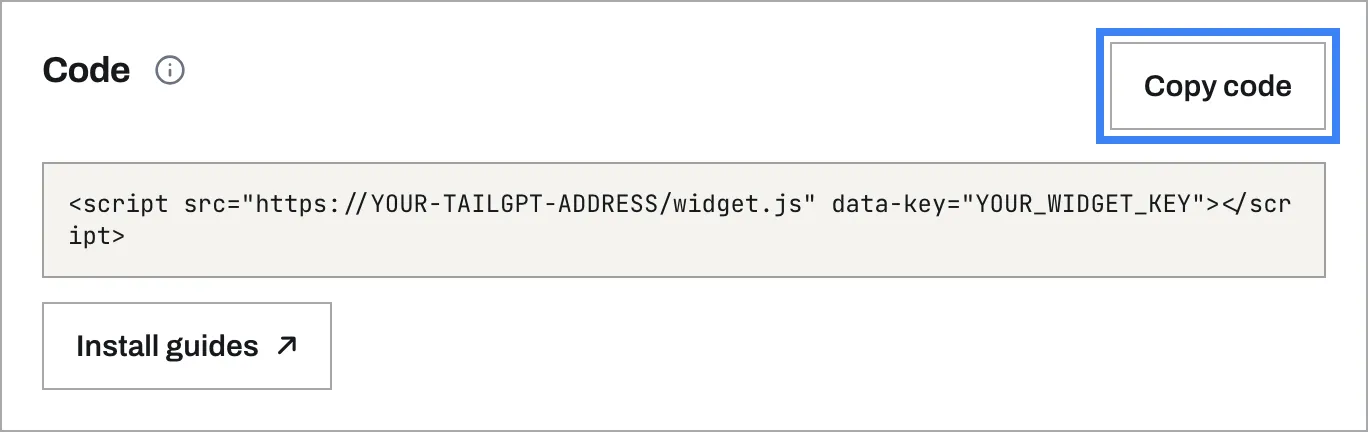
It looks like this, with your own key where this one says YOUR_WIDGET_KEY:
<script src="https://app-tailgpt.tailwebs.com/widget.js" data-key="YOUR_WIDGET_KEY"></script>Copy yours from the dashboard - this example will not work on your site.
Step 2: Open Code Injection
In your site, go to Pages → Website Tools → Code Injection.
Step 3: Paste your code into the Footer box
Paste your code into Footer. Squarespace puts it just before </body> on every page.
Step 4: Save
Click Save.
Check it works
- Open your website in a private (incognito) window. A logged-in admin view and a cached page can both hide a change.
- Wait a few seconds for the chat bubble in the corner of the page.
- Ask it a question your website answers.
- In the TailGPT dashboard, open Chatbots. Once the bubble has loaded on a page of your website, your chatbot shows Live.
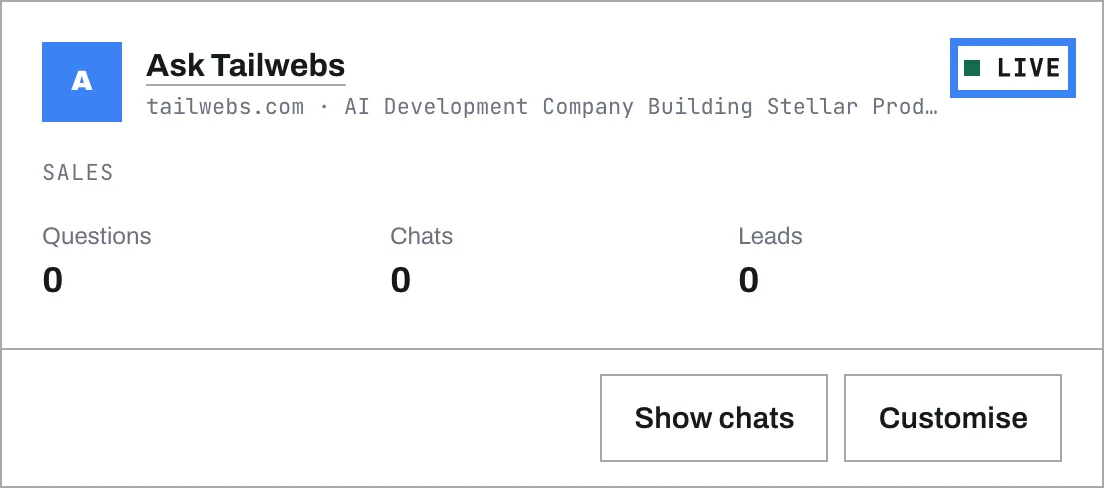
No bubble? Troubleshooting covers the usual reasons.
Squarespace’s editor turns custom code off while you edit, so the bubble does not show there. Open your live site in a private window instead.
Stuck?
Start with Troubleshooting. Still stuck? Write to [email protected] with your website's address and the platform it is built on.
Where these steps come from