Getting started
Choosing which pages it reads
Your chatbot answers only from the pages you choose. So choose the pages your customers ask about.
Which pages to keep
Keep the pages that answer questions: prices, delivery, returns, opening hours, what you sell, and how to get in touch.
Skip blog archives, press releases and old offers. They make reading slower without adding answers - and your chatbot could repeat an offer that has ended.
How many you can choose
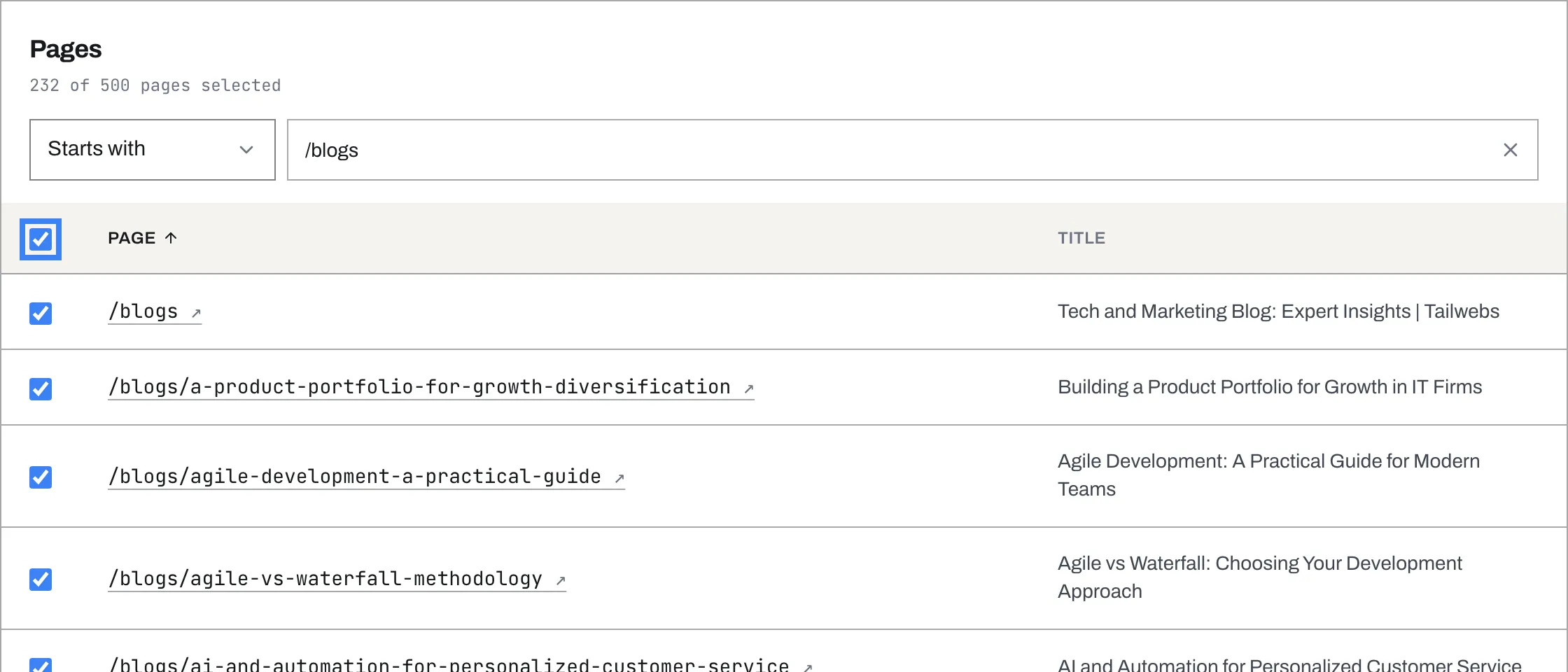
Your plan sets how many pages TailGPT reads. Above the list, the website’s page shows how many you have chosen - for example, “120 of 500 pages selected”.
If you have more than one website, they share the pages: three websites on a 500-page plan hold 500 pages between them.
Most websites need far fewer pages than they have. The pages that answer questions are almost always the policy and product pages.
Choosing them
- Open Websites and click your website.
- TailGPT ticks every page it finds. While it is still looking, the page says Checking for pages the sitemap missed and how many it has found so far.
- Under Pages, untick the pages you do not want. Click a page’s address to open it in a new tab if you are not sure what it is.
- To untick a whole group at once, choose how to search - Contains, Starts with, Ends with or Does not contain - and type into Search pages. For example, Starts with and
/bloglists only your blog. The tick box at the top of the list then ticks or unticks every page the search found, not just the ones on screen.
- Click Read, top right.
If the top tick box would choose more pages than your plan allows, TailGPT ticks as many as fit and tells you how many - for example, “80 of 120 fit the plan”.
If it says No sitemap found
A sitemap is a list of all your pages that most websites publish for search engines, usually at an address like example.in/sitemap.xml. TailGPT uses it to find your pages quickly.
Without one, TailGPT still finds your pages by following the links on them, one page to the next. That is slower, and it can miss a page that nothing links to.
To add a sitemap:
- WordPress: plugins such as Yoast SEO or Rank Math create one for you. WordPress also has a basic one built in, at
/wp-sitemap.xml. - Shopify, Wix, Squarespace and Webflow: these make a sitemap for you. In Webflow, switch it on in your site settings, under SEO.
- Any other website: ask whoever looks after your website to add one.
Then open the website in TailGPT and click Re-read to find the missing pages.
Pages that were not read
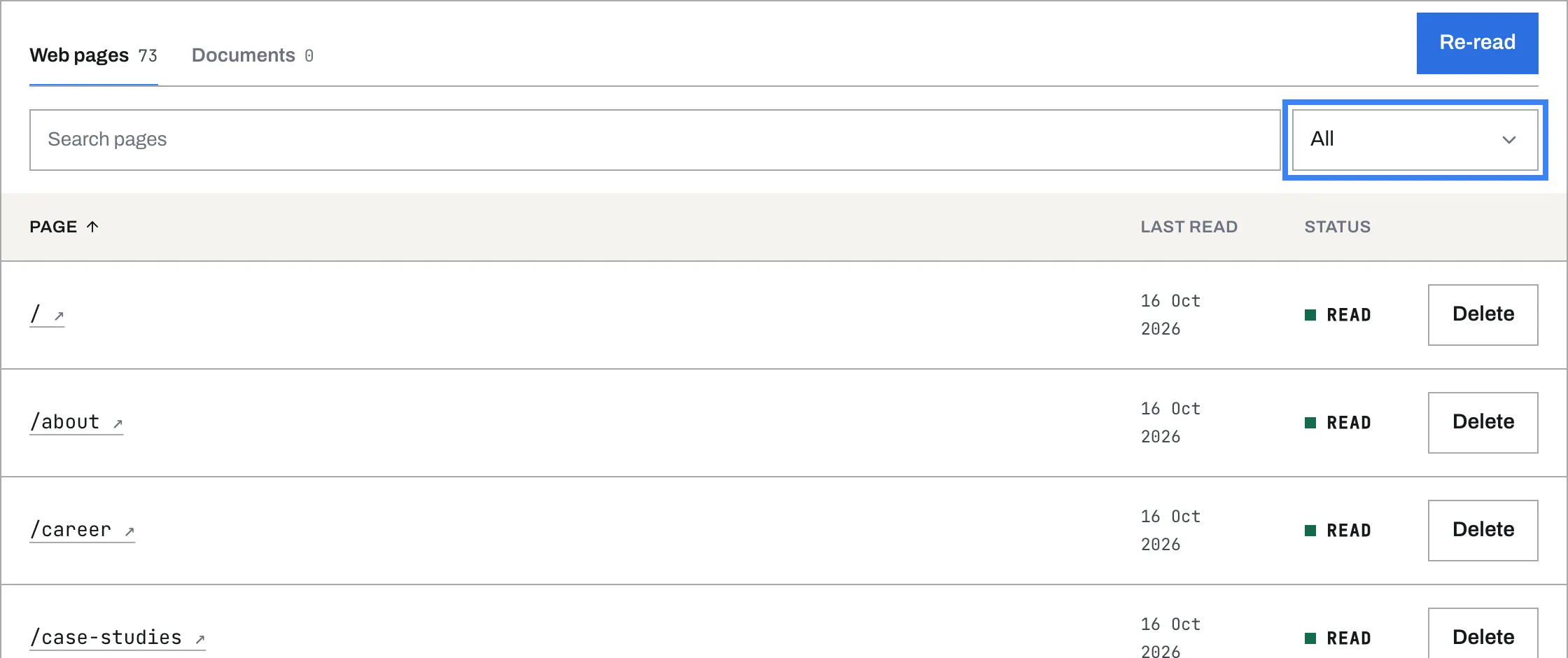
After a read, your website’s page has two tabs, Web pages and Documents. Web pages lists every page you chose, with when it was last read and its status. Choose a status from the list beside Search pages to see only those pages:
- Read - your chatbot answers from it.
- Not read - chosen, but not read yet. The next read picks it up.
- Skipped - TailGPT left it out on purpose. A page that asks search engines not to read it (some websites mark pages “noindex”) is one example.
- Failed - TailGPT could not open it. Point at the (i) beside Failed to see why.
If some pages ask not to be read, a notice above the list tells you how many. Click Show them to see which.
When you change your website
TailGPT does not know about a change until it reads your website again.
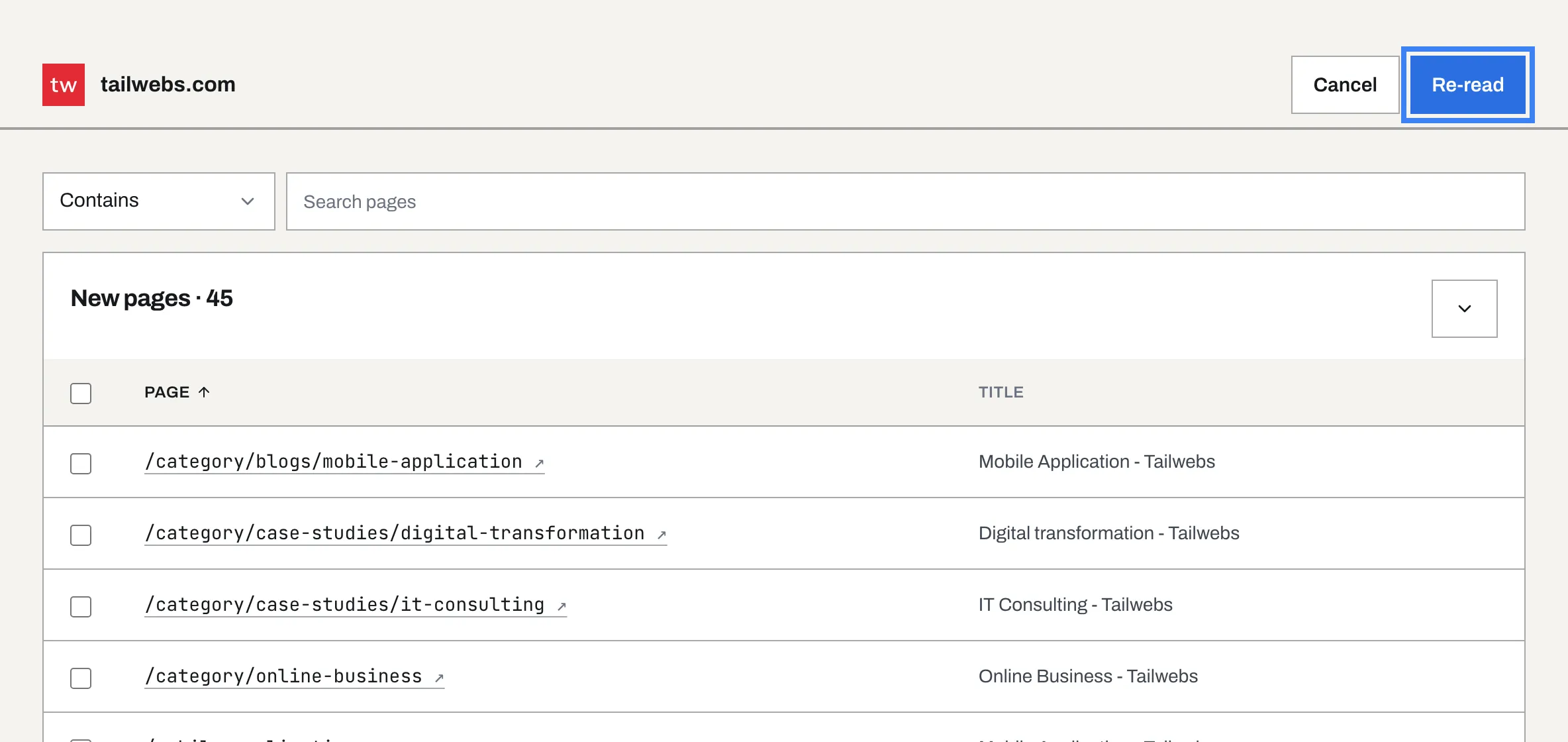
- Open the website’s page and click Re-read.
- TailGPT looks for new pages, and says Checking for pages the sitemap missed while it does. Re-read waits until it has finished.
- The list has three groups: New pages (found since the last read, and not ticked), Already read and Not read. New pages is open; click the arrow on the right of Already read or Not read to open them. One search box searches all three.
- Tick the pages you want, then click Re-read. A few minutes later, your chatbot answers from the new content.
Your plan includes a number of re-reads each month, and the bottom of the page says how many you have left - for example, “Uses 1 of 4 re-reads left”. The free preview reads your website once, so on the free preview Re-read becomes Choose a plan.
To stop using a page, click Delete on its row under Web pages. The next re-read leaves it out; ticking it again brings it back.
Reading your website again never touches the documents you uploaded.
Where these steps come from
- make.wordpress.org/core/2020/07/22/new-xml-sitemaps-functionality-in-wordpress-5-5/
- help.shopify.com/manual/using-themes/find-site-map
- support.wix.com/en/article/understanding-your-sites-sitemap-file
- support.squarespace.com/hc/en-us/articles/206543547-View-your-site-map
- help.webflow.com/hc/en-us/articles/33961355371667