Help
Troubleshooting
The chat bubble is not showing on your website? These are the usual reasons, most common first. Each one says how to tell, and how to fix it. You do not need to be technical for most of them.
Saved but not published
Some platforms keep your change as a draft until you publish your website - Wix, Webflow, Framer and Google Tag Manager among them. Until then, visitors still see the old version.
- Open your platform’s editor.
- Click Publish.
- Check your live website again, in a private window.
An old copy of the page is shown
To load faster, many websites keep a saved copy of each page (a “cache”). A caching plugin, your hosting company or a service like Cloudflare can keep showing that old copy - from before you added the code.
- Clear the cache in your caching plugin, your hosting control panel and Cloudflare, if you use them. Look for a button called Clear cache or Purge cache.
- Open your website in a private window.
A speed plugin delays the code
WordPress speed plugins can hold back pieces of code (scripts) until a visitor scrolls or clicks, or squash several of them into one file. Either can stop the bubble from appearing. Tell the plugin to leave TailGPT’s script, widget.js, alone:
- WP Rocket: Settings → WP Rocket → File Optimization. Under Delay JavaScript execution, add
widget.jsto Excluded JavaScript Files, then save. - LiteSpeed Cache: LiteSpeed Cache → Page Optimization → Tuning. Add
widget.jsto JS Deferred / Delayed Excludes, and to JS Excludes, then save. - Autoptimize: Settings → Autoptimize → JS, CSS & HTML. Add
widget.jsto the list of scripts to exclude from optimizing, then save.
Using another plugin? Look for a setting that excludes a script from delaying, deferring or combining, and add widget.js to it. Then clear its cache.
Cloudflare Rocket Loader
Cloudflare’s Rocket Loader changes the way scripts load, and can stop the bubble from appearing. Tell it to leave TailGPT alone by adding data-cfasync="false" to your code, just before src:
<script data-cfasync="false" src="https://YOUR-TAILGPT-ADDRESS/widget.js" data-key="YOUR_WIDGET_KEY"></script>Keep your own address and key, as they are in the code you copied from TailGPT.
The code starts with http://
A secure website (its address starts with https://) is not allowed to load code from an address that starts with http://. The browser blocks it silently, so nothing tells the visitor.
- Look at the start of your code: it must begin
<script src="https://. - If it says
http://, copy your code again from TailGPT, or changehttp://tohttps://in the code you pasted.
The page is on a different address
For safety, the bubble appears only on the website you added in TailGPT - its address with or without www. A page on any other address, such as a separate shop or booking website, does not show it.
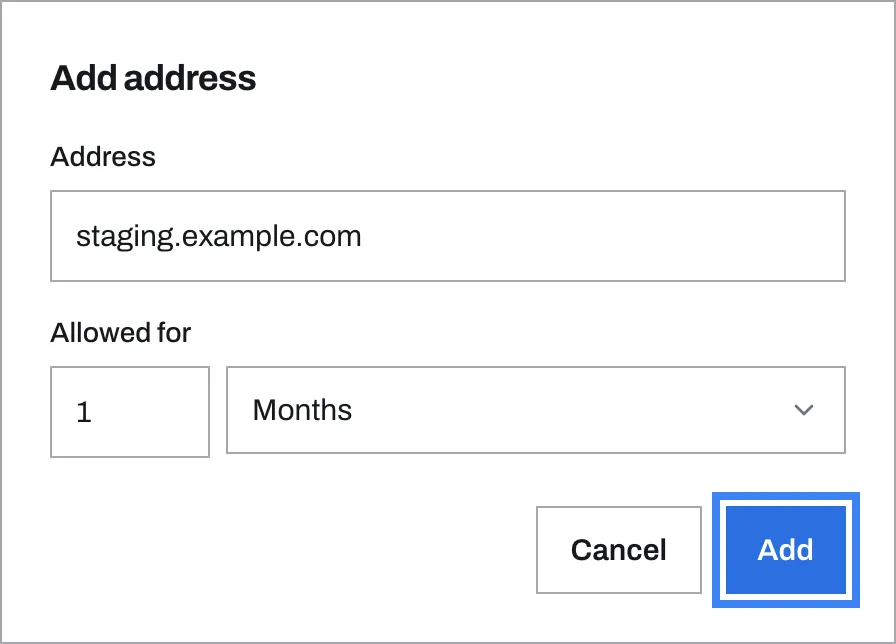
To use the same chatbot on another address - a test copy of your website, say - open the chatbot, find Where it works and click Add address. Type the address, choose how long it is allowed for under Allowed for - days, weeks, months, years, until a date, or Never for no end - and click Add. It works straight away. Remove takes it off again.
The plan, the chatbot or the website is not active
The bubble shows only while your plan is live and the chatbot and its website are active. Nothing on your website says why - your visitors simply see no bubble.
- Open Subscription in the menu on the left and check your plan is active. If you moved to a smaller plan, the chatbots it does not cover are paused.
- Open Websites and click the chatbot’s website. If its status says Inactive, switch Active on, top right, and confirm Make active.
- Open Chatbots. A chatbot that says Inactive, Paused by plan, Website inactive or Choose a website is not answering anyone. Point at the (i) beside the status to see why. Inactive means it was switched off: open it and switch Active on, top right.
A chatbot that says Ready is working, but TailGPT has not seen its code on your website yet. It changes to Live once the bubble loads on a page of your website. If it stays Ready, the code is not on the page your visitors see - start again from the top of this page.
An ad blocker or privacy extension
Some browser add-ons (extensions), such as ad blockers, hide chat bubbles. Open your website in a private window with extensions turned off, or on your phone.
Your site sends a Content-Security-Policy
This one is for whoever built your website. Some websites tell the browser exactly which other addresses they may load code from - a security setting called a Content-Security-Policy. If yours has one, it must allow TailGPT’s address, or the browser blocks the bubble. Ask your developer to add your TailGPT address (the part of your code before /widget.js) to these directives:
script-src  https://YOUR-TAILGPT-ADDRESS
connect-src https://YOUR-TAILGPT-ADDRESS
frame-src   https://YOUR-TAILGPT-ADDRESS
The bubble also draws itself with a small inline style. If your policy has a style-src that does not allow 'unsafe-inline', the bubble loads without its styles.
Still nothing
Turn on the debug switch: add data-debug="1" to your code and read the [TailGPT] lines in your browser’s console. Check it works shows how.
Still stuck? Write to [email protected] with your website's address and the platform it is built on.
Where these steps come from