Help
Check it works
Once your code is on your website, four checks tell you it is working.
The four checks
- Open your website in a private (incognito) window. A logged-in admin view and a cached page can both hide a change.
- Wait a few seconds for the chat bubble in the corner of the page.
- Ask it a question your website answers.
- In the TailGPT dashboard, open Chatbots. Once the bubble has loaded on a page of your website, your chatbot shows Live.
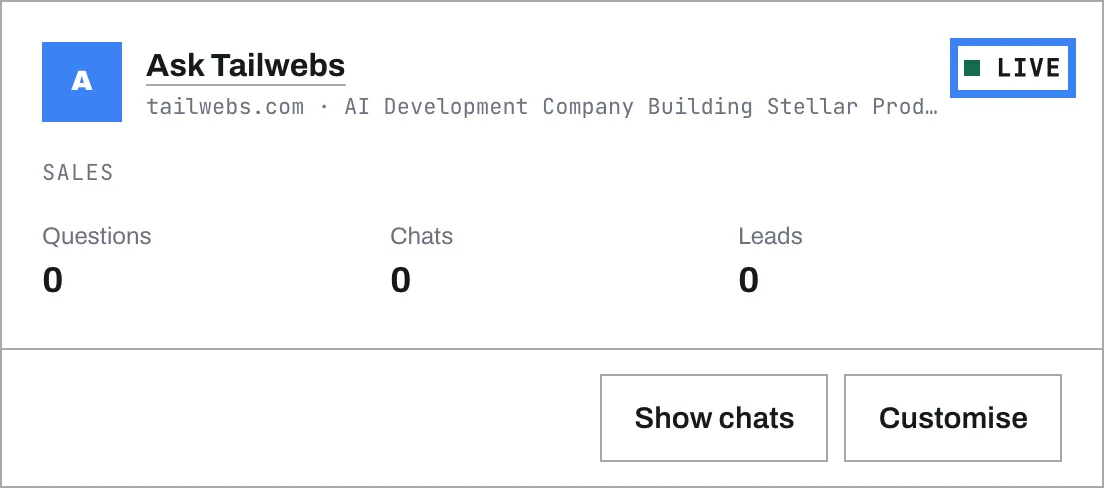
No bubble? Troubleshooting covers the usual reasons.
Using the debug switch
If the bubble does not appear and Troubleshooting has not found the reason, TailGPT can tell you how far it got. This takes a small change to your code, so you may want your developer’s help.
- Add
data-debug="1"to your code, so it reads:
<script src="https://YOUR-TAILGPT-ADDRESS/widget.js" data-key="YOUR_WIDGET_KEY" data-debug="1"></script>- Open your website, then your browser’s console - a panel that shows messages from the page. In Chrome: right-click the page, choose Inspect, then click the Console tab.
- Read the lines that start with
[TailGPT]. They show your chatbot’s key, then its settings loading, then “button drawn”. The last line you see is how far it got. A red line says what stopped it. - Take
data-debug="1"out of your code again once you are done.
If you write to us for help, copy those lines into your message - they save a lot of back and forth.