Getting started
Training it on PDFs and documents
Not everything you know is on your website. A price list may live in a PDF, and the warranty in a Word file. Add them, and your chatbot answers from them too.
Before you start
Adding documents
- Open Websites and click your website.
- Click the Documents tab, then Upload file.
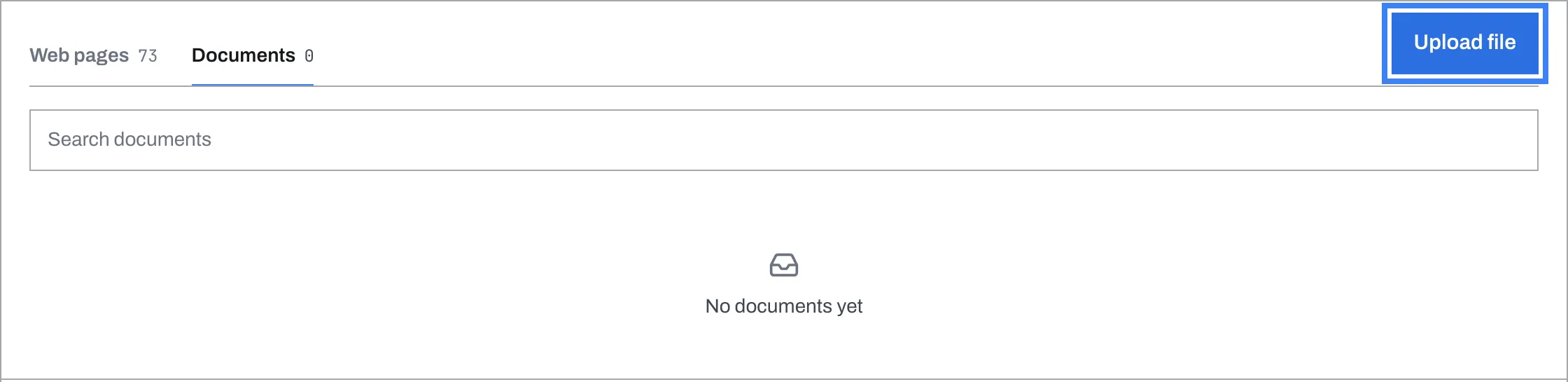
- Choose your files. Each one shows Reading, then Ready - usually within seconds. From then on, your chatbot answers from it.
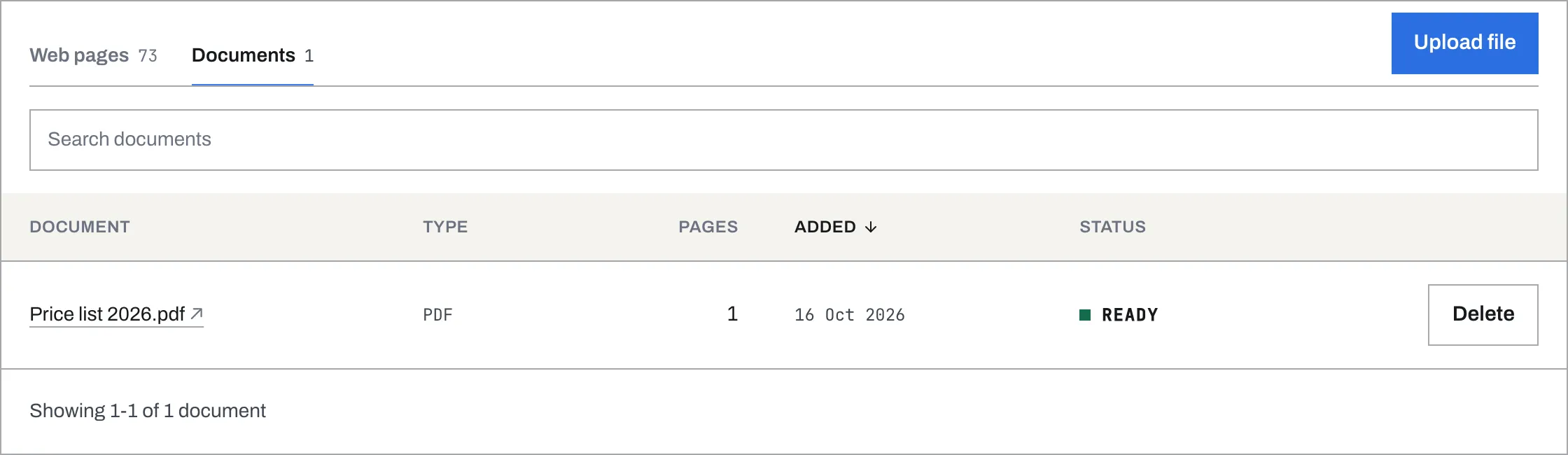
Click a document’s name to open it. PDF and plain text files open in your browser; Word and Markdown files are downloaded.
What it can read
- PDF, Word (.docx), plain text (.txt) and Markdown (.md) files, up to 20 MB each and five at a time.
- Documents count towards your plan’s pages. A PDF counts its pages. A Word or text file counts one page for about every 3,000 characters. The Pages column shows how many each document takes.
- Not older Word files (.doc), spreadsheets or slides. Save them as PDF first.
- Not a scanned PDF. A PDF made by scanning paper is a picture of the page, with no text in it. TailGPT tells you so - “No text was found in this PDF” - instead of quietly reading nothing. A version where you can select the text works.
If a document would take more pages than your plan has left, it shows Failed. Point at the (i) beside Failed to see how many pages it needs and how many are left.
Updating a document
Upload the corrected file under the same file name, and it replaces the old one. That way your chatbot never has to choose between last year’s prices and this year’s.
If the new version does not fit in your plan’s pages, it shows Not updated and the old version keeps answering until you make room.
To take a document away, click Delete on its row and confirm. Your chatbot stops answering from it.
Documents and your website
Reading your website again never touches your documents. They stay until you delete them.