Before a chatbot can answer a single question about your business, it has to read your website. That reading is called crawling, and it decides more about the answers than almost anything else. A page that was never read cannot be quoted. A page read badly, with the menu and cookie banner mixed into the prices, gives muddled answers. This post walks through how a website chatbot reads a site, step by step, why some pages fail, and what that means for how you write and organise your own pages.
The steps are the ones TailGPT follows. The general background on sitemaps and JavaScript comes from Google's own guidance for website owners, read on 4 October 2026.
What does crawling mean for a chatbot?
Crawling is the work of finding a website's pages, opening each one, and keeping what it says. Search engines do it across the whole web. A website chatbot does a narrower version: one website, the pages you choose, read so that it can answer questions from them later.
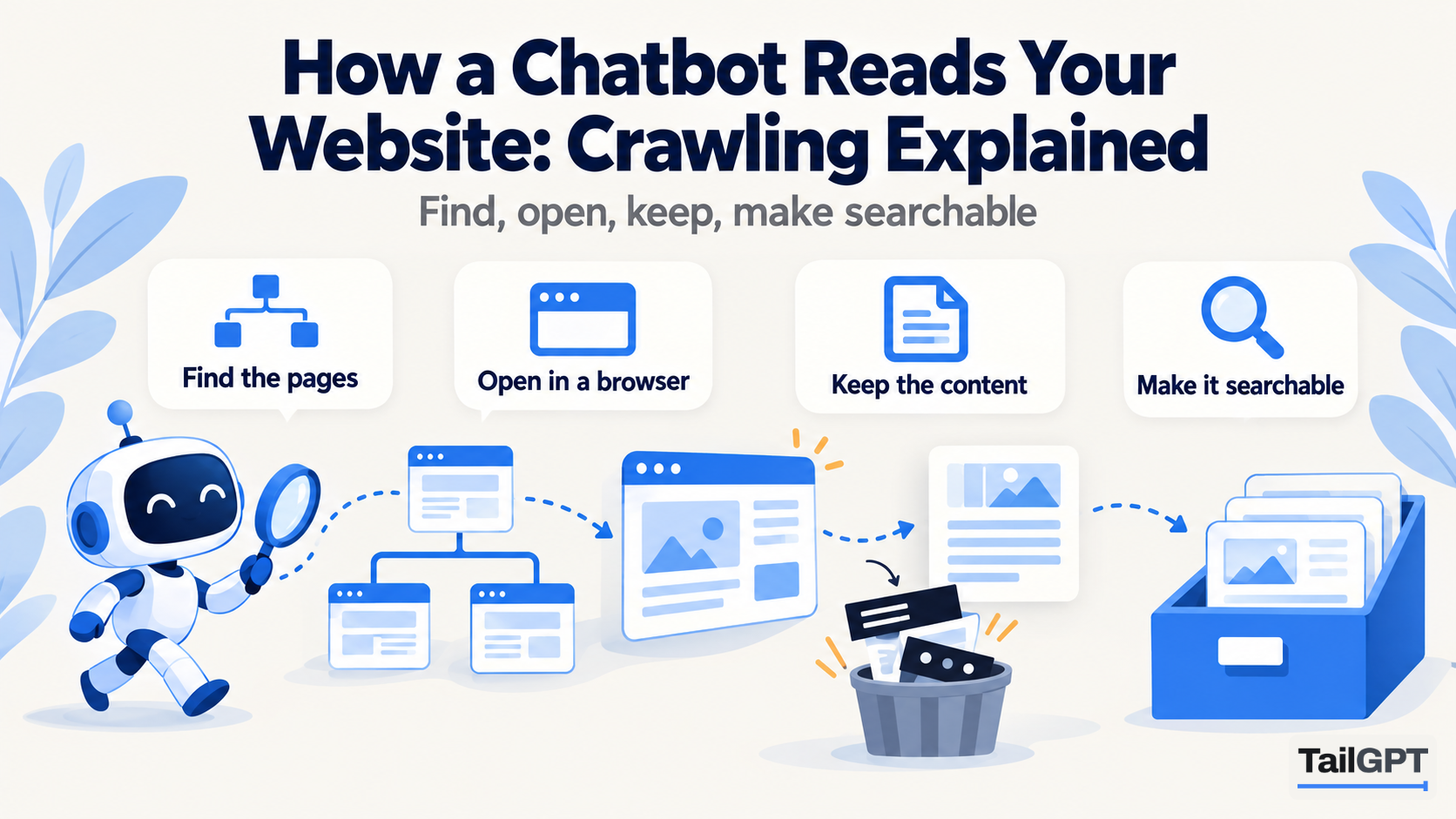
Google describes its own process for modern websites in three phases: crawling, rendering and indexing (Google Search Central, JavaScript SEO basics). A chatbot's version has four steps worth knowing as an owner:
- Discovery: finding out which pages exist.
- Rendering: opening each page so it looks the way it does to a visitor.
- Extraction: keeping the real content and dropping everything around it.
- Indexing: making that content searchable by meaning, so the right passage can be found for a question.
Each step can go wrong in its own way, and each has something you can do about it.
How does a chatbot find your pages?
It starts with your site's own list of its pages, called a sitemap. Google defines a sitemap as "a file where you provide information about the pages, videos, and other files on your site, and the relationships between them" (Google Search Central, sitemaps overview). Most website builders create one automatically, usually at /sitemap.xml.
Using the sitemap means the list is your structure, not a guess. The alternative is to start at the home page and follow links, which works on a well-linked site and quietly misses any page nothing links to. Google's guidance makes the same point about its own crawler: a sitemap matters most when a site is large or new, because crawlers otherwise discover pages through links (Google Search Central).
In TailGPT, adding a website gives you that list within a few seconds. A sensible starting set is ticked for you, and you adjust it: keep the pages customers ask about, untick old campaigns and press releases. Only ticked pages are read. Choosing well is a short job of its own, covered in how to choose which pages your chatbot should read.
One thing to know about the list: it reflects your site when you added it. A page you publish afterwards may not appear in the picker, so do not assume a new page has been picked up. Check the picker after you publish something that matters.
Why does the chatbot open each page in a real browser?
Because many websites build their pages with JavaScript, and a simple reader sees an empty page. When a browser loads one of these sites, the first thing it receives is often a near-blank shell. The prices, the menu and the opening hours arrive a moment later, written into the page by scripts. A tool that only downloads the first response never sees them.
Google handles this the same way. Its guidance says it renders such pages in a headless browser, running the JavaScript before the content is indexed, and adds that "not all bots can run JavaScript" (Google Search Central, JavaScript SEO basics). Website builders, online shop platforms and many modern themes work like this, so a chatbot that cannot run scripts would read a large share of small business websites as blank.
TailGPT opens each page in a real browser, the way a person would. That is slower than downloading text, which is why reading your site takes a few minutes rather than seconds. It runs in the background, and you can close the tab while it works.
What does the chatbot keep, and what does it drop?
It keeps the content the page is about and drops the parts that repeat on every page. On a typical small business site, the menu, footer and cookie banner can be a large share of each page's text, and all of it is identical from page to page.
Left in, that repetition causes real trouble. Your footer's phone number and address would appear in every page the chatbot reads, the cookie notice would turn up beside your returns policy, and the menu's "Shop · About · Contact" would dilute every passage. TailGPT keeps the real content and drops the menu, footer and cookie banner.
What counts as real content is whatever is written on the page as text: headings, paragraphs, lists and tables. That has a consequence worth stating plainly. Text that exists only inside an image, such as a price list photographed and uploaded as a picture, or a timetable designed as a graphic, is not text to a reader that takes the page's words. To a person it is legible. To the chatbot it is a picture.
How does the content become searchable?
The kept text is made searchable by meaning, not just by matching words. When a visitor asks a question, the chatbot looks for the parts of your pages that mean the same thing, then answers from those.
That is why phrasing does not have to match. A visitor in Nagpur asks "Do you ship to my city?" Your delivery page says "We deliver across Maharashtra within four working days." No word in the question appears in the answer, yet they mean the same thing, and a search by meaning finds it.
It is also why a page that was not read cannot help, however well written. The chatbot answers only from what it found here. If nothing on the ticked pages covers a question, TailGPT says plainly that the website does not cover it, rather than filling the gap from elsewhere.
Why do some pages fail to read?
Because a page can be unreachable, unreadable or empty for reasons that have nothing to do with the chatbot. TailGPT's Websites page shows which pages were read, which failed and why, so you are not left guessing. The common causes, in general, are these:
| Cause | What is happening | What you can do |
|---|---|---|
| Login wall | The page is only shown to signed-in customers. A reader without an account sees a login form. | Leave it out. A page written for one customer is not an answer for every visitor. Publish the general version publicly if visitors need it. |
| Bot protection | A security service in front of the site blocks automated visitors, or shows them a challenge page. | Ask whoever runs your site's security whether automated reading is being blocked. |
| Content in images or scans | The page loads, but its information is in pictures, not text. | Put the key facts in text on the page, or upload the document with real text in it. |
| Empty or near-empty page | A page that is only links, a placeholder, or one whose scripts failed to load. | Untick it if it has nothing to say; check it in a browser if it should. |
| Timeout | The page took too long to load, often from heavy media or a slow server. | Check the page loads quickly for visitors too, then read the site again. |
| Page gone or moved | The address in the list no longer exists, or now leads elsewhere. | Fix the link or the sitemap, and tick the new address. |
A failure is worth a glance even when most pages succeeded. If the one that failed is your fees page, the chatbot cannot answer about fees, and every visitor who asks will hear that the website does not cover it.
What does this mean for your own website?
It means the chatbot can only be as clear as your pages are, and a few habits make a large difference. None of them needs a developer.
- Put important facts in text, on a ticked page. A coaching institute whose batch timings are a poster image should add them as text on the batches page. A restaurant whose menu is a photograph should type out at least the dishes and prices people ask about.
- Upload documents rather than linking them. A PDF linked from your website is not read as part of the website; only web pages are. If your price list or prospectus lives in a PDF, upload the file itself to the website's Documents in TailGPT once you have a plan. PDF, Word and text files are accepted, and a scan with no text in it fails with a clear reason. How to train a chatbot on your PDFs and documents covers that in full.
- Check the picker after publishing a new page. A page that did not exist when you added the website may not be listed. If a new page matters, make sure it is there and ticked.
- Read the site again after a change. The chatbot answers from what it last read, not from your live site. TailGPT does not refresh on a schedule: you re-read on demand, from a monthly allowance shared across your account. Ticking or unticking a page also takes effect at the next read. How to keep your chatbot's answers up to date sets out a routine.
- Keep one version of each fact. If the returns window is 14 days on one page and 30 on another, the chatbot reads both and may quote either.
How can you tell whether the reading worked?
Ask the chatbot what your customers ask, and watch what it cannot answer. TailGPT's Try demo button lets you question the finished chatbot before it goes on your site, and the Websites page shows the result of every read.
After launch, the dashboard lists the questions your chatbot could not answer, under "Questions your chatbot could not answer", with how many times each was asked, alongside an answer rate and a daily chart of answered and not-answered questions. A cluster on one subject usually points to one of three things: a page that failed to read, a page that was never ticked, or a fact that exists only in an image or a linked PDF. Each has a fix in the sections above.
The whole journey, from adding a website to reading every conversation, is set out on how TailGPT works.