Most product companies already have the answers their customers want. They sit in a help centre, a setup guide, a troubleshooting page and a forty-page PDF manual that ships in the box. The trouble is that customers do not read them. They email you, call you, or give up.
A documentation chatbot puts those answers one question away. This guide covers how to build one in TailGPT from your help pages and manuals, which role to give it, what it cannot do, and how to stop it answering from last year's version of your product. Plan figures are as of 4 October 2026.
What does a documentation chatbot answer from?
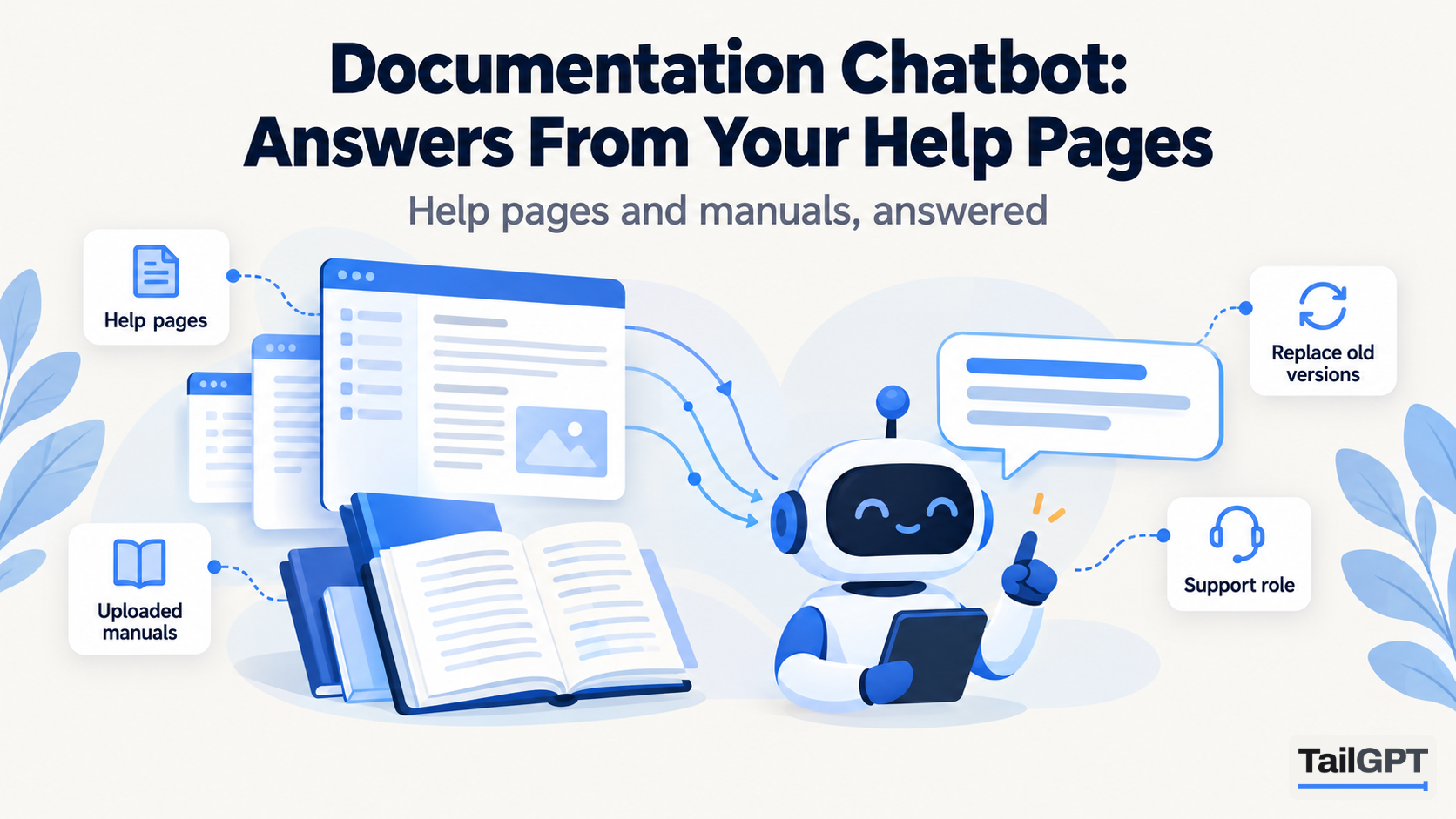
A TailGPT documentation chatbot answers only from the help pages you tick on your website and the manuals you upload, and from nothing else. It has no general knowledge to fall back on. If your guide says the reset button is on the back panel, that is what it says; if your guide never mentions a reset button, it says plainly that the website does not cover it, rather than describing a reset button from some other company's product.
That matters more for documentation than for almost anything else. A wrong answer about a delivery date costs a customer a day. A wrong answer about wiring an inverter, configuring a payroll export or descaling a coffee machine can cost a customer the product.
Where do your help pages need to live?
Your help pages need to be on the website TailGPT reads, because a chatbot answers from one website. TailGPT treats each website address as its own website. If your product site is yourproduct.com and your help centre is help.yourproduct.com or sits on a different domain altogether, those are two websites in TailGPT, each read separately.
That leaves three workable setups:
- Help centre on the same website. If your guides live at
yourproduct.com/help, add the website once and tick the help pages alongside the rest. One chatbot covers both. - Help centre on its own address, one chatbot. Add the help centre as the website and put the chatbot there. It answers from the help centre and any manuals you upload to it.
- Both, two chatbots. Add both websites and give each its own chatbot: a Sales chatbot on the product site and a Support or FAQ chatbot on the help centre. That needs a plan with two websites live at once, which as of 4 October 2026 means Growth (three) or Enterprise.
The line of code for each chatbot only works on the website it answers from, with or without www. A chatbot built on the help centre cannot be pasted onto the product site and carry on answering there.
When you add a website, TailGPT lists its pages from the site's own page list (its sitemap). Check that list for the articles you care about before you tick anything. A guide published after you added the site may not appear in it, so if an important article is missing, save it as a PDF and upload it, or ask TailGPT.
Which help pages should you tick?
Tick the pages that answer the questions customers actually send you. For most product companies that is a short, predictable list:
- getting started and installation guides;
- troubleshooting pages and the meaning of error messages or warning lights;
- setup guides for each feature or model;
- compatibility pages: which devices, versions or accessories work together;
- warranty, servicing and spare parts;
- plans, limits and pricing, because "can my plan do this?" is a documentation question too.
Leave out pages that would make answers worse. Release notes for versions nobody runs and archived guides still read as instructions, and the bot cannot tell they are old. A community forum, where customers answer each other, is a mix of right and wrong; tick it only if you would stand behind every reply on it.
Length does not count against you. A TailGPT page is one page of your website, whatever its length, so a long reference page costs the same as a short FAQ. As of 4 October 2026, Starter covers 1,000 pages and Growth 7,500, shared across websites. The general approach to choosing is in how to choose which pages your chatbot should read.
How do you add manuals that are not on the website?
Upload them as documents. TailGPT reads PDF, Word (.docx) and text (.txt, .md) files, with no limit on how many, and uploaded documents do not count against your page allowance. Answers start using a file within seconds of the upload. Uploading needs a plan; the free trial reads pages only.
Take a company in Ahmedabad that makes solar inverters. Its website explains the range, but the installation manual, the error-code sheet and the warranty terms are PDFs. Uploaded to the same website, they let the bot answer "what does error E07 mean?" from the error-code sheet and "is the battery covered for five years?" from the warranty, in the same chat.
Software teams can upload Markdown guides as they are.
One trap catches most manufacturers: a scanned PDF has no text in it. TailGPT marks it failed and says no text was found, rather than quietly reading nothing. Export a version with selectable text instead. How to train a chatbot on your PDFs and documents covers scans, splitting long manuals and naming files.
How do you replace a manual when a new version comes out?
Upload the new version with the same file name, and it replaces the old one. The bot then answers from the new manual only, so it never has to choose between version 3 and version 4.
This is why the file name matters. Call the file X200-user-manual.pdf, not X200-user-manual-v3-final.pdf. If the name changes with every edition, each upload sits beside the last one, and the bot finds both. Where you really do support two models, keep two files with two clear names and say the model name inside each.
Reading your website again never touches your documents, so a new manual has to be replaced by uploading it. A re-read does not do it for you.
Which role suits a documentation chatbot?
The FAQ role or the Support role, depending on how your customers ask. Every TailGPT chatbot has a role, and the role changes the manner of the answer, never what it is allowed to say.
| Role | How it answers | Fits |
|---|---|---|
| FAQ | Short and direct | Quick lookups: opening hours of a service centre, what a warning light means, which charger fits |
| Support | Calm and factual | A customer partway through a setup, or annoyed that something stopped working |
| Custom | Your own instructions | A house style, such as answering steps in order or always naming the guide it is drawing on |
| Sales | Leads with products and pricing, points to the next step | The product site, not the help centre |
Custom instructions can shape how answers sound. They cannot give the bot permission to answer from outside your pages. How to set your chatbot's role covers each role in detail.
What can a documentation chatbot not do?
It can explain your instructions, but it cannot act on a customer's behalf or see anything about their account. Be clear about these before you put it in front of customers:
- It cannot log into your product. It does not see a customer's settings, data, licence, order or ticket history. "Why is my invoice showing the wrong tax?" gets the general explanation your docs give, not a look at that invoice.
- It cannot follow links in its answers. Answers are plain text, with no clickable links. When the bot points to a guide, it names it in words, such as "see the Network setup guide". It gives a support phone or WhatsApp number only if one is written on a page you ticked.
- It cannot hand the chat to a person. There is no live chat inbox and no ticket creation. Make sure your help pages say how to reach your team, so the bot can point there.
- It will not write or fix code. A question about what an error means is a question about your docs, and it answers that. A request to write a script or debug someone's code is refused, with the same short refusal TailGPT gives any off-limits request, and a refused question does not use one of the month's questions.
A question your docs do not cover is different from a refusal. The bot says plainly that the website does not cover it, and that does use one question, because it was searched for and answered honestly.
How do you stop answers drifting from your current version?
Have TailGPT read the website again after every release that changes your help pages, and replace manuals by uploading them under the same name. TailGPT has no scheduled or automatic refresh: re-reads happen when you ask, from a monthly allowance shared across the account. As of 4 October 2026, that is 2 a month on Starter and 8 on Growth.
For a product that ships monthly, a simple routine works:
- Update the help pages as part of the release, not after it.
- Replace any changed manual with a same-name upload.
- Read the site again with the "Read the N selected pages" button on the Websites page, and check the result for pages that failed.
- Ask the bot two questions the release changed, using Try demo.
Version drift is also a writing problem. If your docs cover several versions, say the version in the page title and the first line ("Version 4: exporting payroll"), so the bot can say which version an answer applies to. A page that only says "click Export" will be quoted to customers on every version. How to keep your chatbot's answers up to date has the full routine.
How do you test it before customers see it?
Use Try demo on the Chatbots page and ask the questions your support inbox gets every week, word for word. Then ask three it should not know: a feature you do not have, a model you never made, and a version you no longer support. A good documentation bot answers the first set from your guides and says plainly that the website does not cover the rest.
After launch, open Show chats to read every conversation the chatbot has had, as the customer saw it. You can search for a word such as "error" or "reset", and filter to the last 7, 30 or 90 days. The dashboard also lists the questions your pages could not answer, with how often each was asked. That count is a to-do list for your help centre: if twenty people asked about a feature the docs never mention, the fix is a new help page, not a better bot.
When does a tool with connectors suit your docs better?
When your docs live in Notion, Confluence, GitHub or a helpdesk rather than on a public website, a tool that connects to those directly may suit you better. TailGPT reads one website and uploaded files; it has no connectors.
Some documentation chatbots are built around those sources. They connect directly to workspace wikis, code repositories, helpdesks and cloud drives, and re-read them on a schedule, monthly or weekly depending on the plan. A few can also answer your staff inside a team chat tool such as Slack. If your knowledge is spread across tools like those, or the same bot needs to answer staff as well as customers, check which sources and which refresh schedule each plan includes before you choose. Should a chatbot read your docs or your whole site? walks through that choice, and how to test a chatbot's answers before you buy shows how to check any tool on your own questions.
If your help pages are already on your website and your manuals are PDFs or Word files, TailGPT reads both as they are, priced in rupees, with one question counted as one. The whole flow is on how it works.